Documentation › Everyday guides
Organize, move and recover files
A practical walkthrough for folders, clipboard transfers, dragging, progress and the Trash
Make a place for your documents
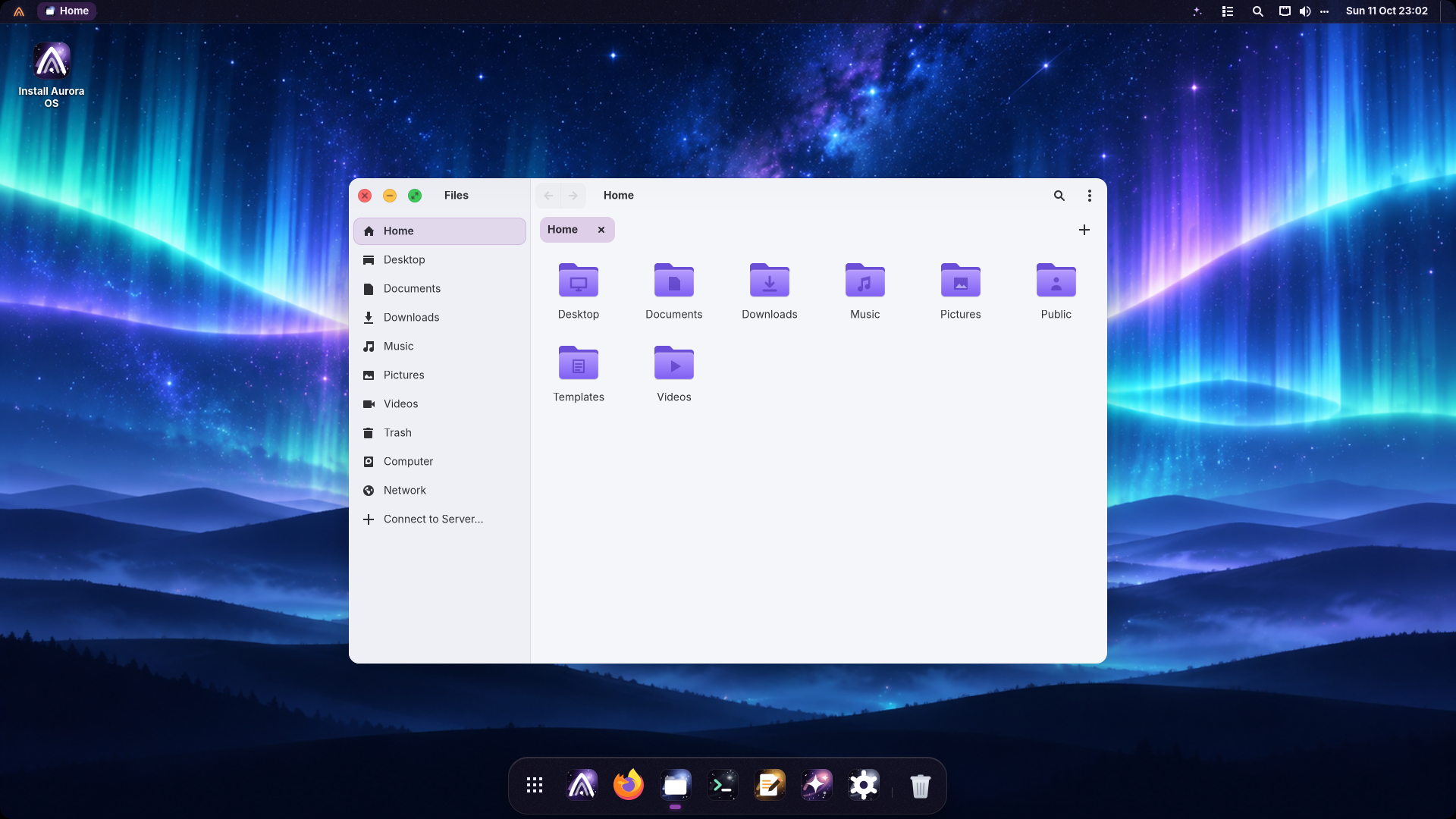
- Open Files with Super+E and select Documents in the sidebar.
- Right-click empty space and choose New Folder…. Enter a name and create it.
- Double-click the folder to open it. Right-click a folder and choose Add to Sidebar if you use it often.
Show the file actions menu
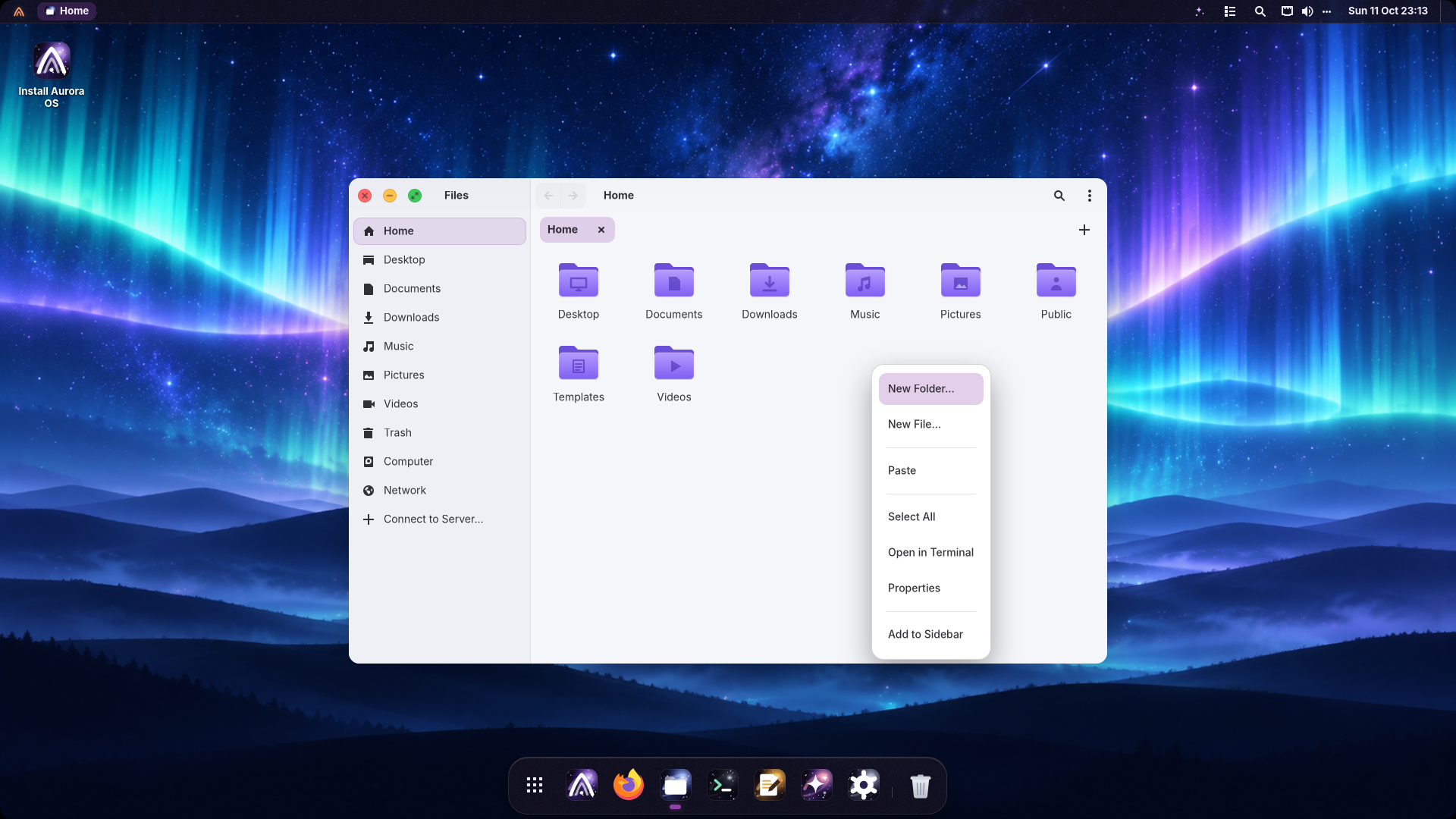
Copy or move files
- Select the files. Hold Ctrl to select individual items or Shift to select a range.
- Use Ctrl+C to copy, or Ctrl+X to move.
- Open the destination folder, then press Ctrl+V.
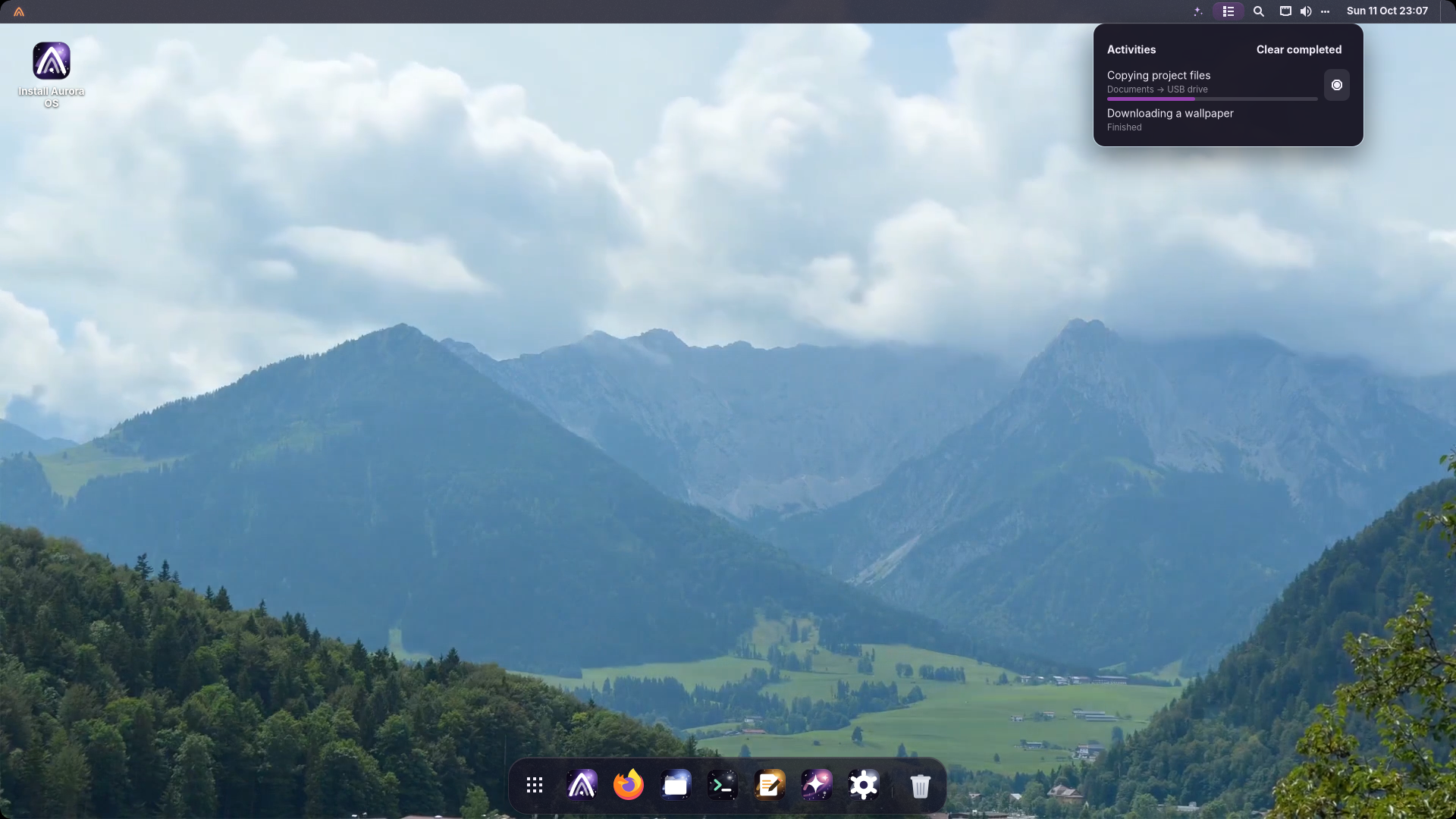
- Watch the progress. The top-bar list icon opens the activity center; it keeps running work above completed work.
Alternatively, drag the selection onto a folder or sidebar place. Hold Ctrl to request a copy or Shift to request a move. Wait for completion before unplugging a drive, then use its eject button in the sidebar.
Show places and transfer progress
Recover a mistake
- For supported file operations, use Ctrl+Z to undo; Ctrl+Shift+Z redoes the operation.
- For a file sent to the Trash, select Trash in the sidebar, right-click the file and choose Restore.
- Delete Permanently and Empty Trash remove files permanently. Use ordinary Trash deletion when you want the option to restore.
See Files for tabs, archives, search, network folders and keyboard shortcuts.