Documentation › Everyday guides
Choose or import a background
Step-by-step: included still images, animated wallpapers and your own photos or videos
Use this guide to choose one of Aurora's backgrounds or add your own. The complete reference, including daylight series and slideshows, is in Appearance and backgrounds.
Choose an included still image
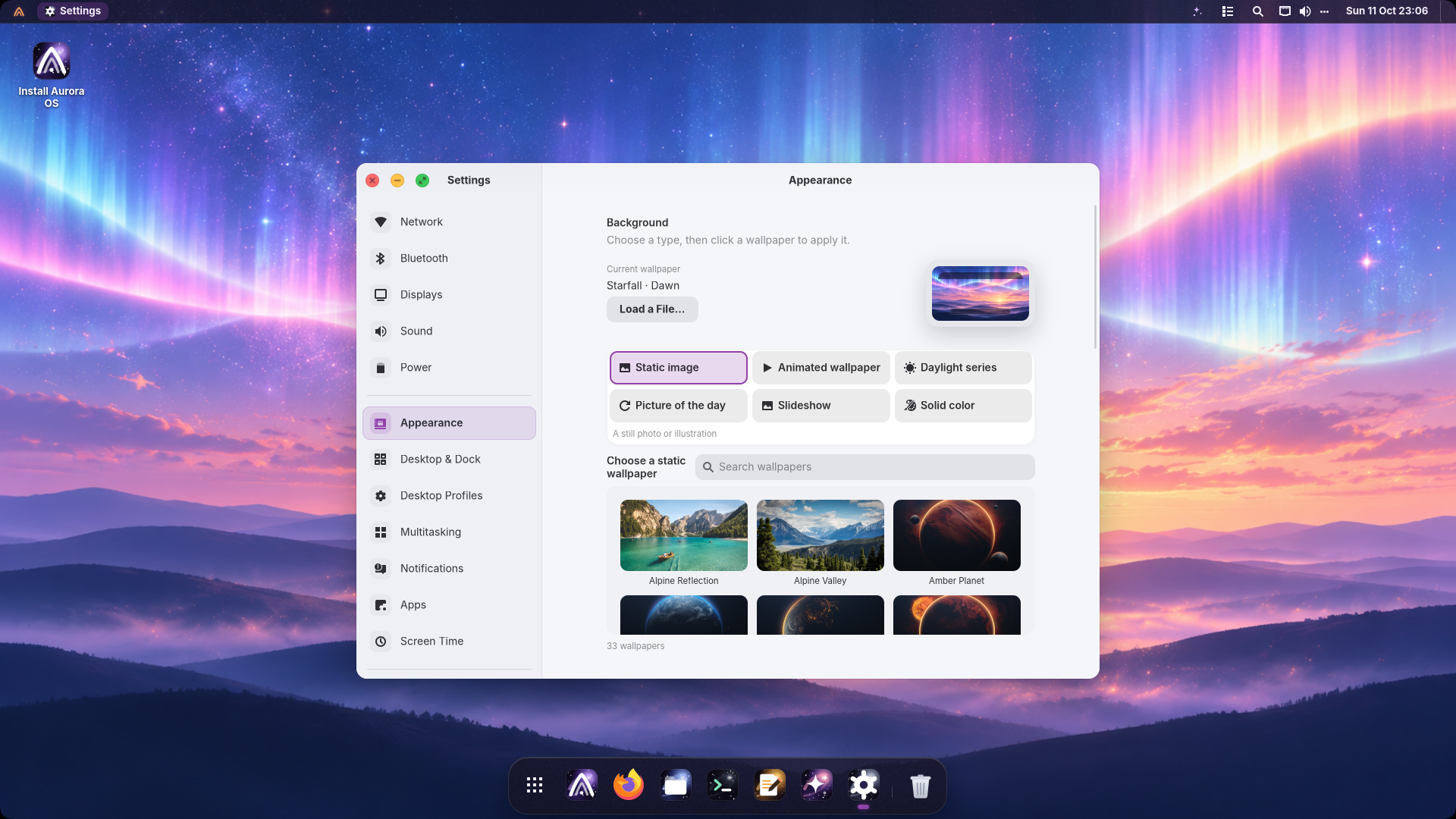
- Open Settings with Super+I, then select Appearance.
- Under Background, select Static image.
- Browse the thumbnails or use Search wallpapers. The gallery scrolls within the page.
- Click the image you want. It applies immediately; there is no separate Apply button.
Show the static wallpaper gallery
Choose an animated wallpaper
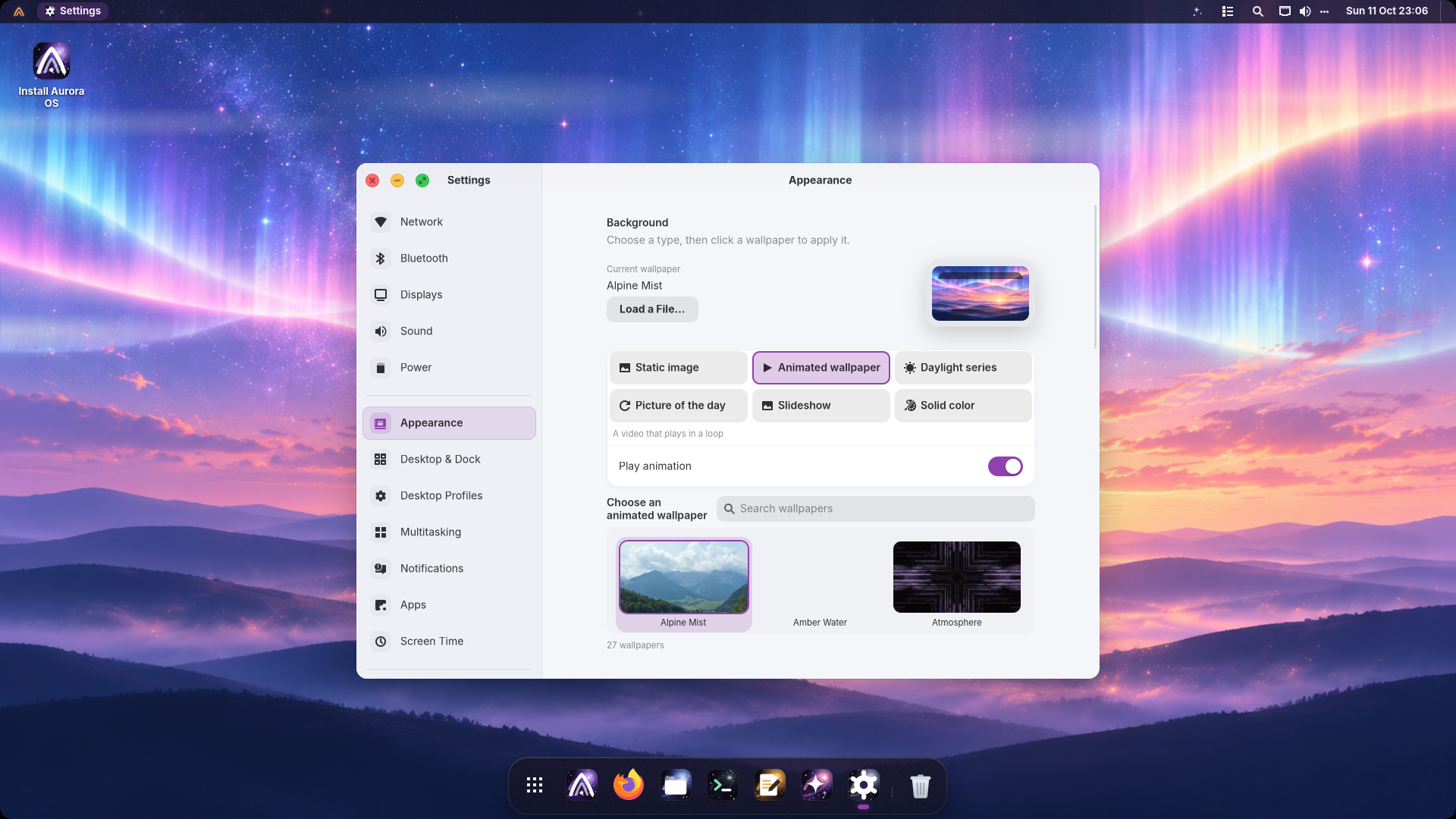
- On the same page, select Animated wallpaper.
- Click a video thumbnail. The preview and background use the selected video.
- Keep Play animation on for motion. Turn it off to pause on the video's poster while retaining your selection.
A Daylight series is a set of still pictures that changes with the sun. An Animated wallpaper is a looping video. Choose Static image if you want a picture that stays still.
Show the animated wallpaper controls
Import your own photo or video
- Click Load a File… beside the current wallpaper preview.
- Select a readable picture or video. Pictures include PNG, JPEG and WebP; videos include MP4, WebM, M4V and MOV.
- Wait for the Wallpaper added message. Aurora copies the file into your personal wallpaper collection, chooses the matching type and applies it.
Your imported files appear alongside the included backgrounds. Preferences belong to your account; choosing a wallpaper does not change another user's selection.