 Bitloom docs
Web dashboard
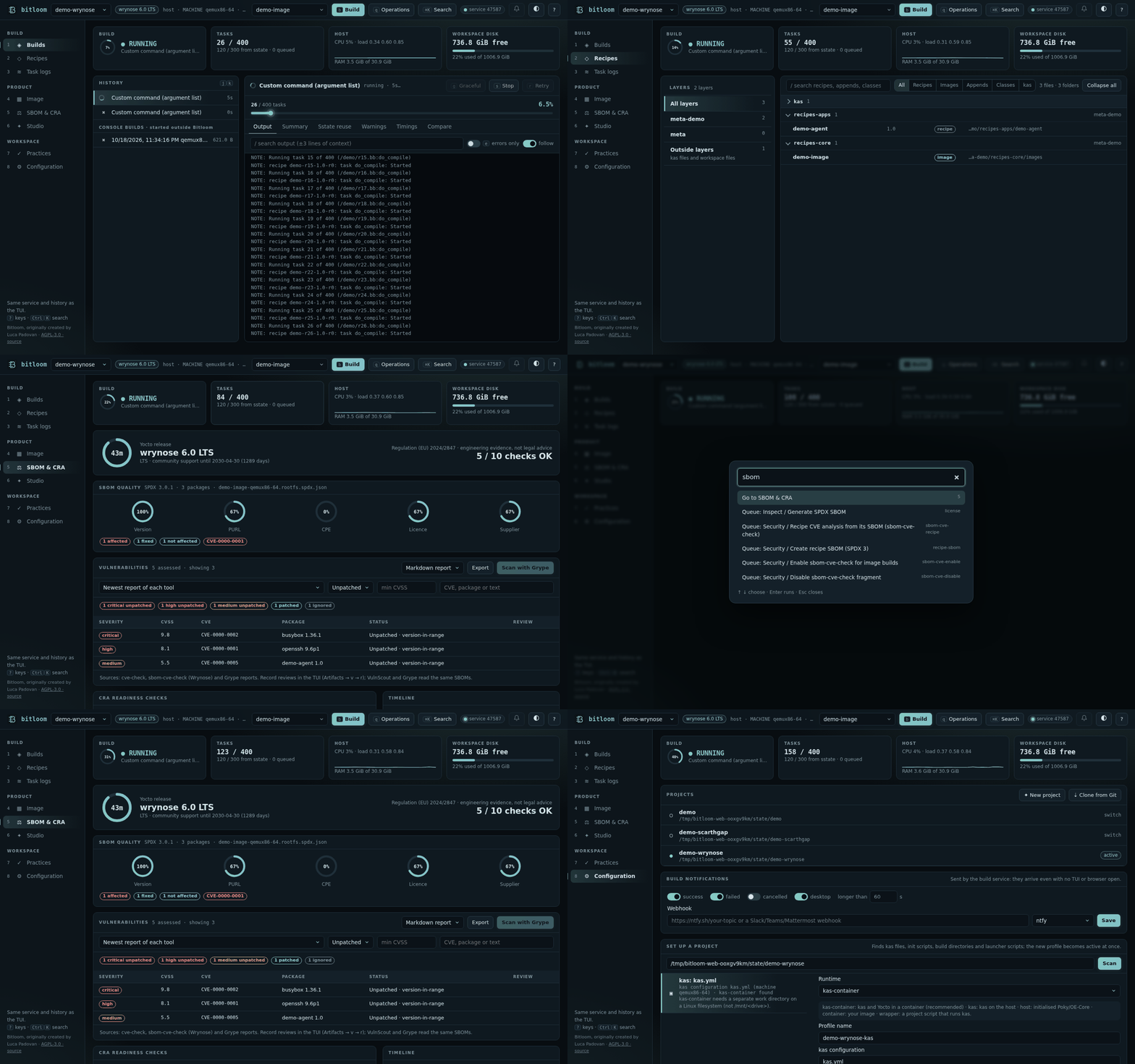
bitloom --web serves a browser dashboard for the same build service the TUI uses. Builds queued from the browser and from the terminal share one serial queue and one history, so you can start a build in the TUI, follow it on a laptop or phone, and retry it from either place.
Screenshot Web dashboard following a running build
Start it#
bitloom --web                              # loopback only, opens a browser
bitloom --web --no-browser --port 9000     # pick the port; 0 chooses a free one
bitloom --web --config .bitloom/profiles.json --state .bitloom
The command prints a URL such as http://127.0.0.1:8765/#token=… and opens it in a graphical browser: on WSL the Windows browser (through wslview when installed, otherwise PowerShell). Text-mode browsers such as lynx or w3m are never started, because they would take over the terminal; without a graphical browser Bitloom only prints the URL. --no-browser skips opening. The token lives in the URL fragment: it is never sent in requests, the page keeps it for the browser tab and sends it as an X-Bitloom-Token header. Ctrl+C stops the web server only; builds keep running in the service. --state must match the TUI to see the same history.
The dashboard needs only the Python standard library. It is not a multi-user server: anyone holding the URL can queue builds for your profiles.
Remote access#
Keep the default loopback address and tunnel it:
ssh -L 8765:127.0.0.1:8765 build-server
--host 0.0.0.0 listens on every interface and prints a warning; use it only on a trusted network. On loopback the server also checks the Host header, which defeats DNS-rebinding attacks.
Sections#
| Key | Section | What it shows |
|---|---|---|
1 |
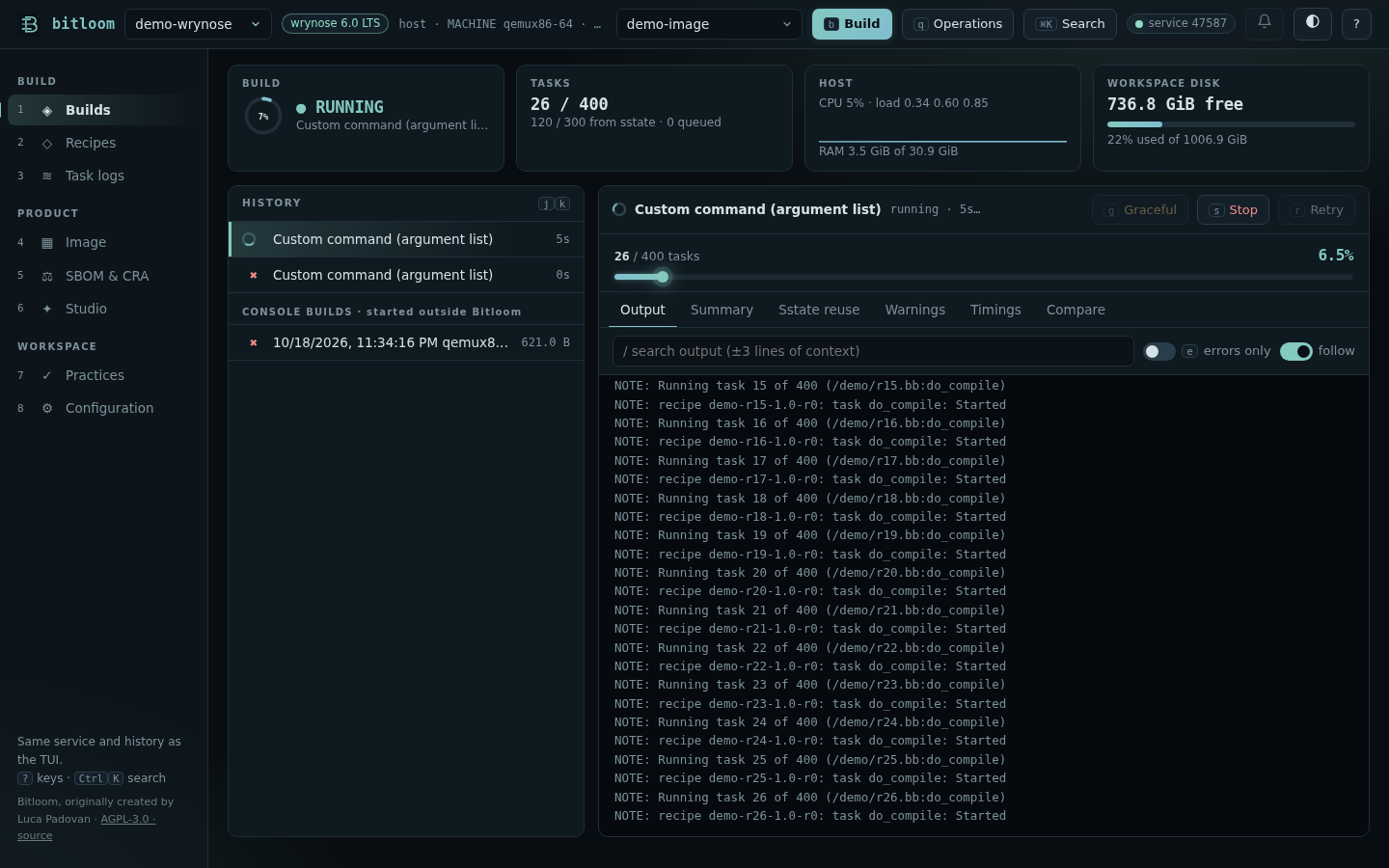
Builds | History with live spinners, the selected job with an animated progress bar (stripes while running, indeterminate until BitBake reports task counts), streaming output, search with context, errors-only filter, stop, graceful stop and retry. Console builds started outside Bitloom appear under the history. |
2 |
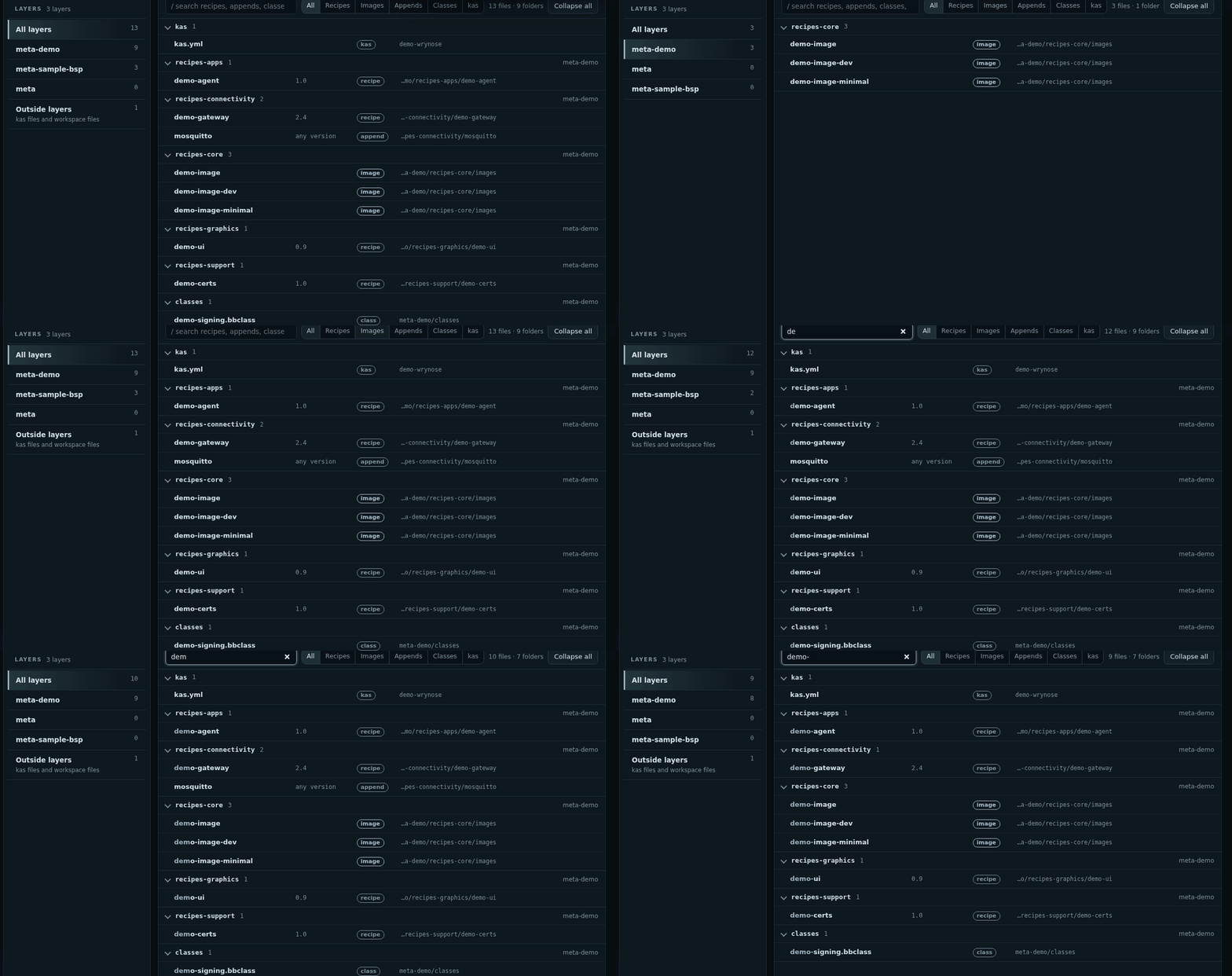
Recipes | + Add a layer from the Layer Index or a Git URL with its dependencies (see Projects); every layer on the left with its file count (example and selftest layers last); on the right the folders of the selected layer (recipes-core, classes-recipe…) open on click, with recipe name, version, kind and path. Filter by kind (Recipes, Images, Appends, Classes, kas) and search as you type; Use as target puts a recipe in the build field. |
3 |
Task logs | tmp/work/*/temp/log.* files with search and an errors-only view. Only indexed task logs can be read. |
4 |
Image | The built root filesystem, folder by folder, with sizes, owners and the package and recipe behind every file; Services: what starts on the device (systemd units or SysV scripts in boot order, udev rules, D-Bus); Device tree: the deployed DTBs decompiled, with enabled and disabled devices; Insights: charts of where the space goes (layer, kind of file, recipe), licences, dependency hubs, what listens on the network and a security look; the biggest packages and folders; Which recipe installs… for any file or package, with Change it with an append. See Image explorer. |
5 |
SBOM & CRA | Release support, SBOM quality gauges, VEX status, vulnerabilities from cve-check, sbom-cve-check and Grype, CRA readiness checks, the regulation timeline and every SBOM option with its explanation. See SBOM, CRA and releases. |
6 |
Studio | Create a product layer, distribution, machine, image, recipe or append one step at a time: every option explained, where the files go and their content shown live, a review before anything is written, and what to do next. See Studio. |
7 |
Practices | How far the project follows the Yocto best practices: a score, what needs attention with the file and line, every rule with an on/off switch and a severity, your company's own rules, and a report to export. See Best practices. |
9 |
Migrate | Move the project to a newer release (Scarthgap → Wrynose): every rule of the official migration guides checked on your files, safe fixes with a diff and undo, a new kas file and profile for the new release, then build and verify. See Migrate. |
8 |
Configuration | Projects (recent, new, clone), guided project setup, What this release can do (every release-dependent feature, ✔ or ✖ with the reason, checked in the project), health checks, setup checks and literal local.conf values. See Projects. |
Animation Recipes: a layer, the Images filter, then a search
Build target#
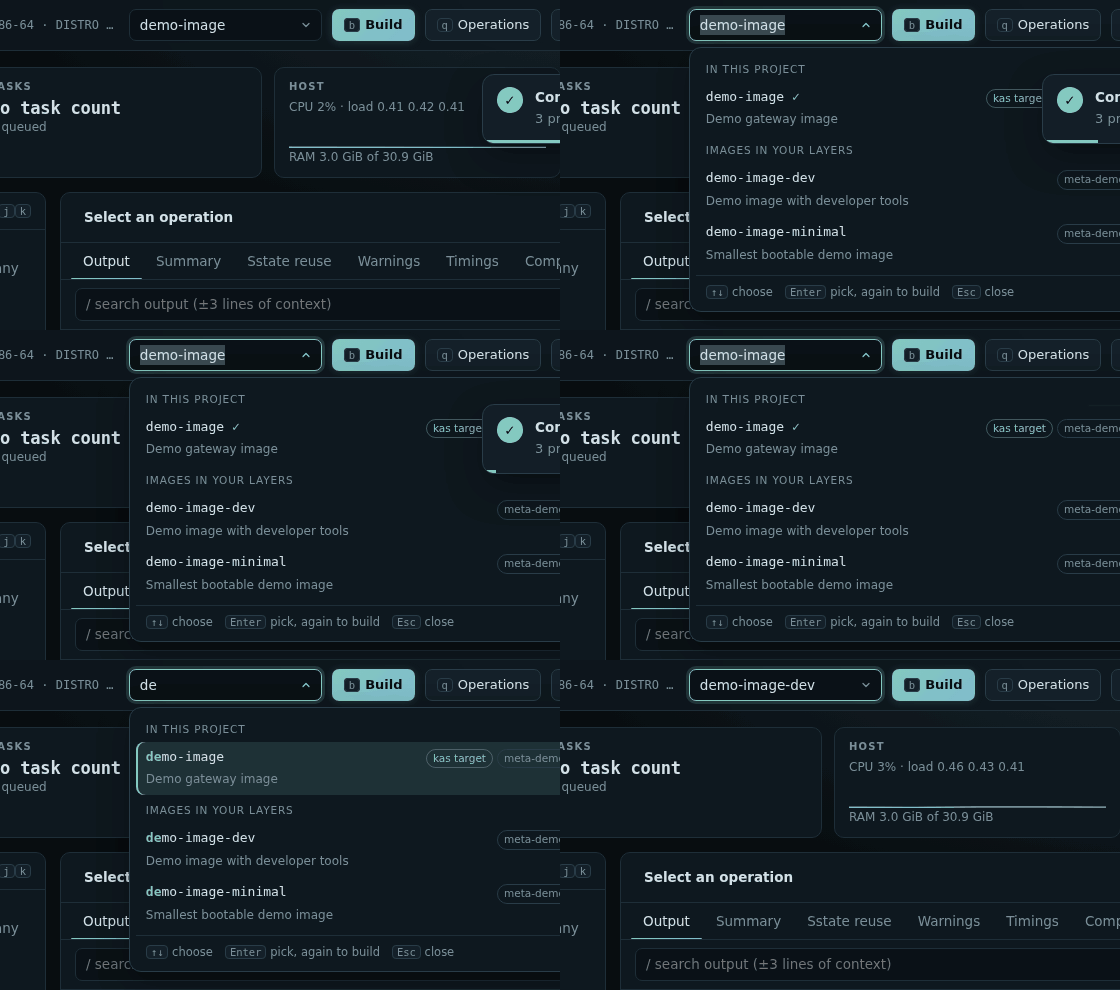
The target field in the top bar is a combobox. Click it, press t or ↓ to list the image recipes found in the project's layers: the kas target: and images already built come first, example and test images last, each with its layer and SUMMARY. Type to filter, ↑/↓ to choose, Enter to pick, Enter again to build. Any other recipe or several space-separated targets can still be typed.
An image recipe is a .bb that inherits core-image or image, or requires another image recipe. Only files with "image" in their path are read, so the list is ready in a few milliseconds.
Animation Typing in the target field filters the image recipes; Enter picks one
Animation A real force compile of busybox followed live, then its summary (about three times faster)
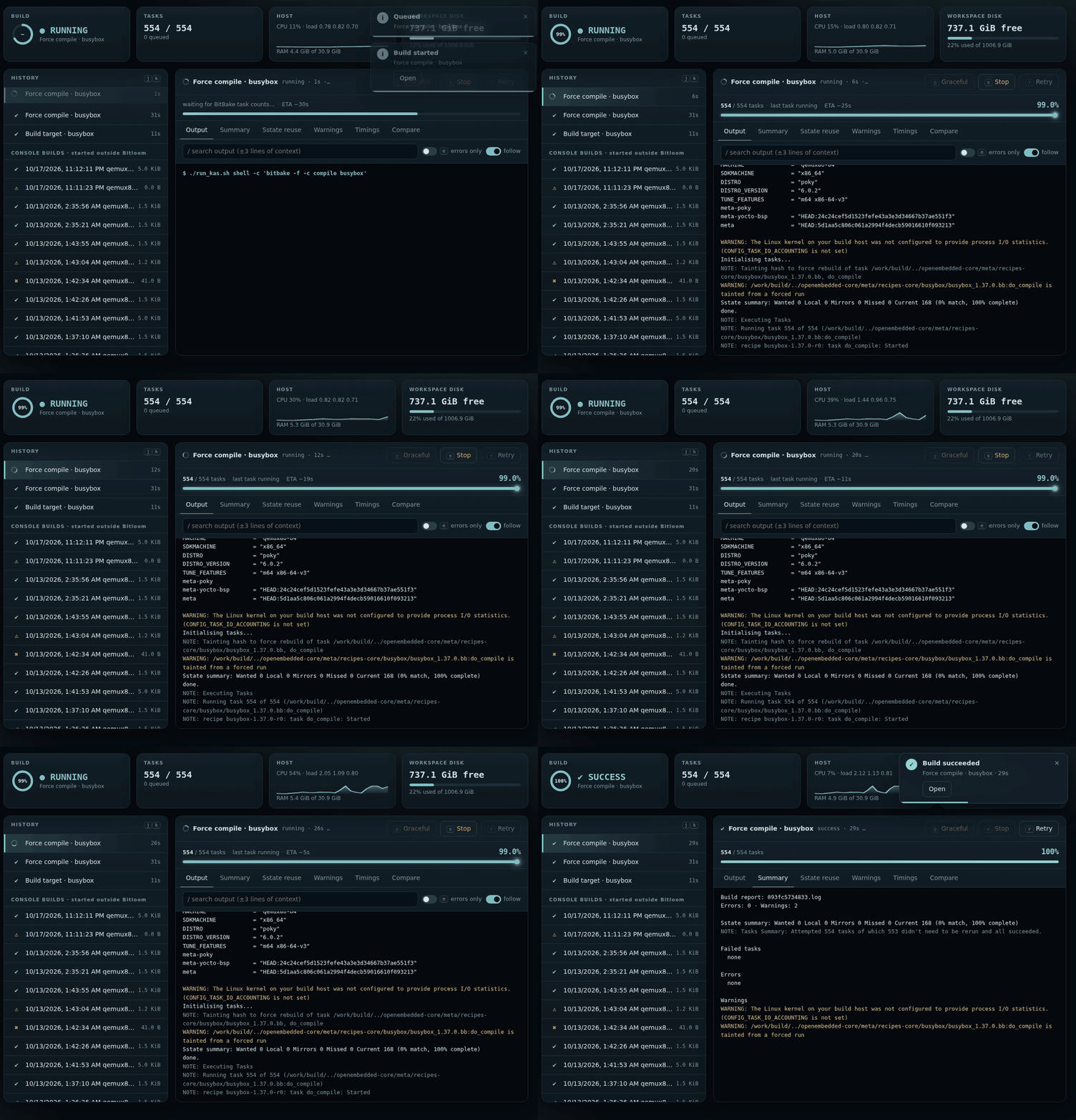
The build detail has Toaster-style tabs computed from the stored log: Summary (errors, warnings, failed tasks), Sstate reuse, grouped Warnings, observed task Timings and Compare with the previous run of the same command. A running build shows its ETA next to the task count.
Screenshot Build summary tab
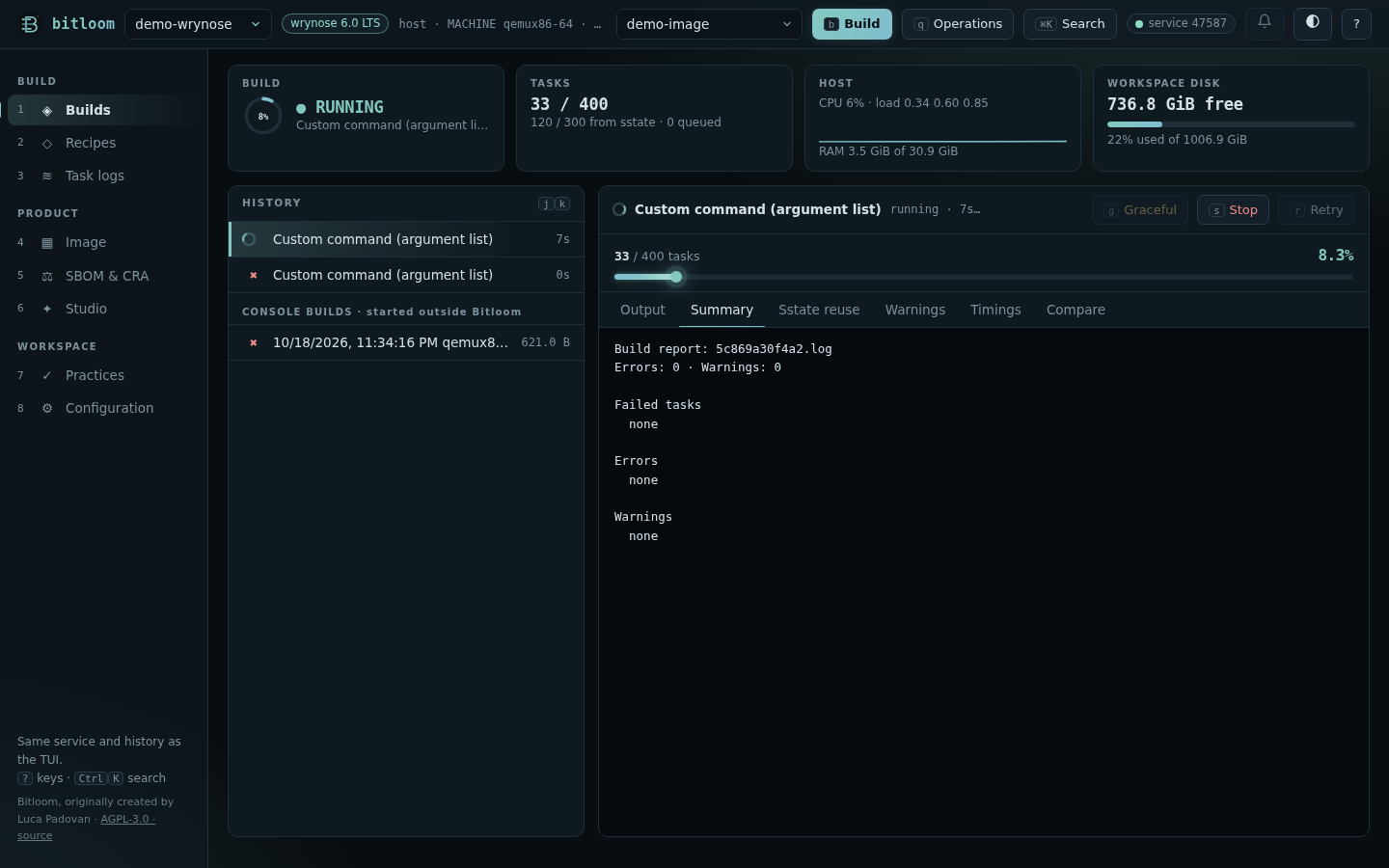
The progress line above the tabs shows the task count, the percentage and the ETA; a dot marks where BitBake is, and a failed build keeps a ✖ where it stopped. When a build fails, a toast offers its summary, which starts with the failure diagnosis: the category, the failed tasks, their logs, the lines that caused it and the next step.
Animation A failed sample build: the toast, then the summary opening on the diagnosis
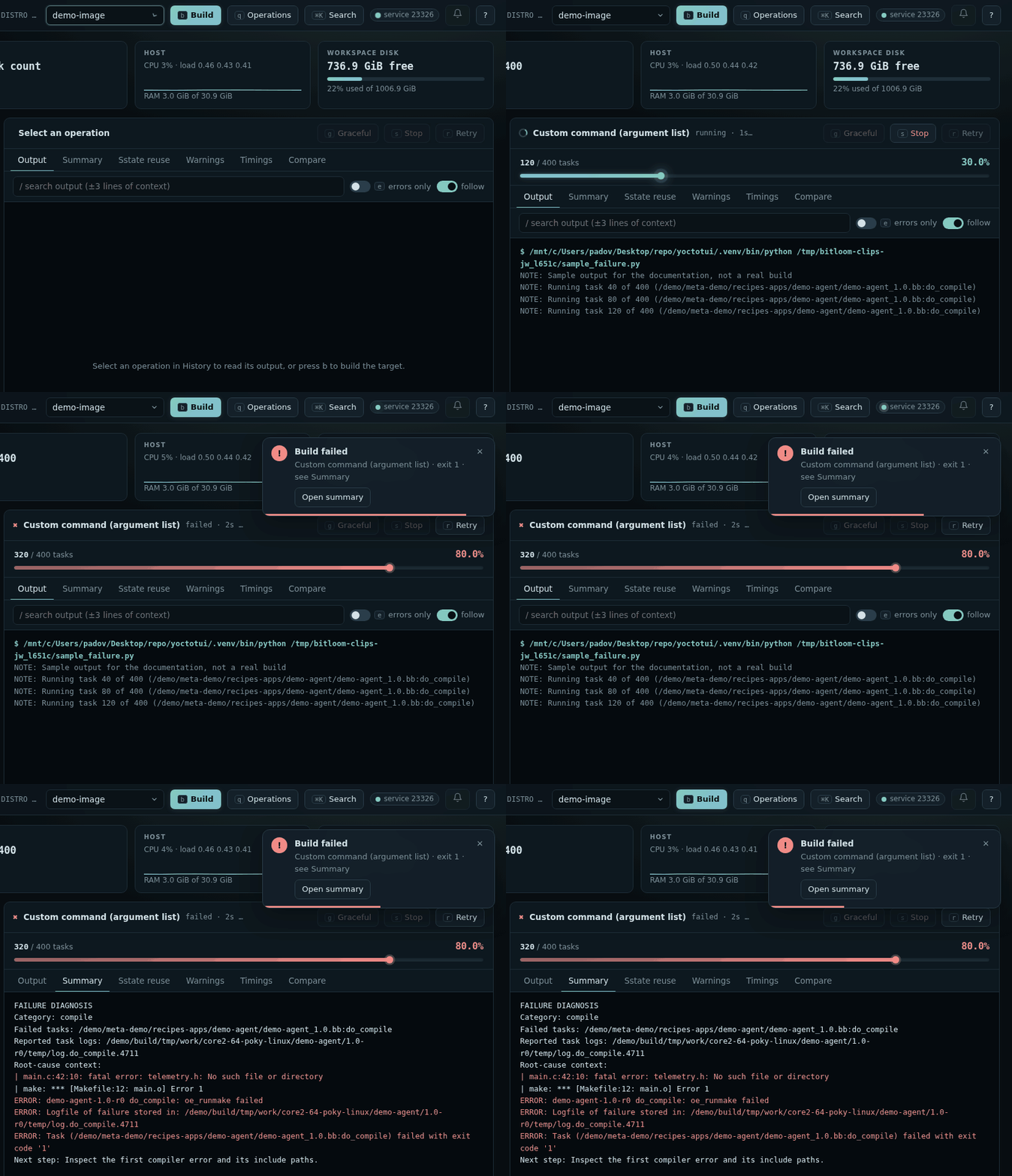
Notifications and animations#
The bell button in the top bar turns on browser notifications for builds that end while the tab is in the background; the build service's own desktop and webhook notifications are configured in Configuration (see Daily helpers). New jobs slide in at the top of the history; existing rows update in place, so the list never flickers while a job runs. Toasts slide in for every state change of a job: started, succeeded, failed (with a button that opens the summary) and cancelled. Hover a toast to pause its countdown; failures stay longer. Cards count up, rings and meters animate, the CPU card draws a live sparkline, and views fade in. With the operating system's reduce motion setting, all animations are disabled.
Keyboard#
The dashboard works without a mouse.
| Key | Action |
|---|---|
1 – 6 |
Switch section |
Ctrl+K |
Command palette: sections, every operation, profile switching and recent builds |
/ |
Focus the search field of the section |
Esc |
Leave a field or close a dialog |
j / k, ↓ / ↑ |
Next / previous operation |
b / q / t |
Build the target / queue any operation / edit the target |
s / g / r |
Force stop / graceful stop / retry the selected operation |
e |
Errors only |
o u w m d |
Output, Summary, Warnings, Timings, Compare tab |
? |
Keyboard help |
Screenshot Command palette filtered for SBOM operations
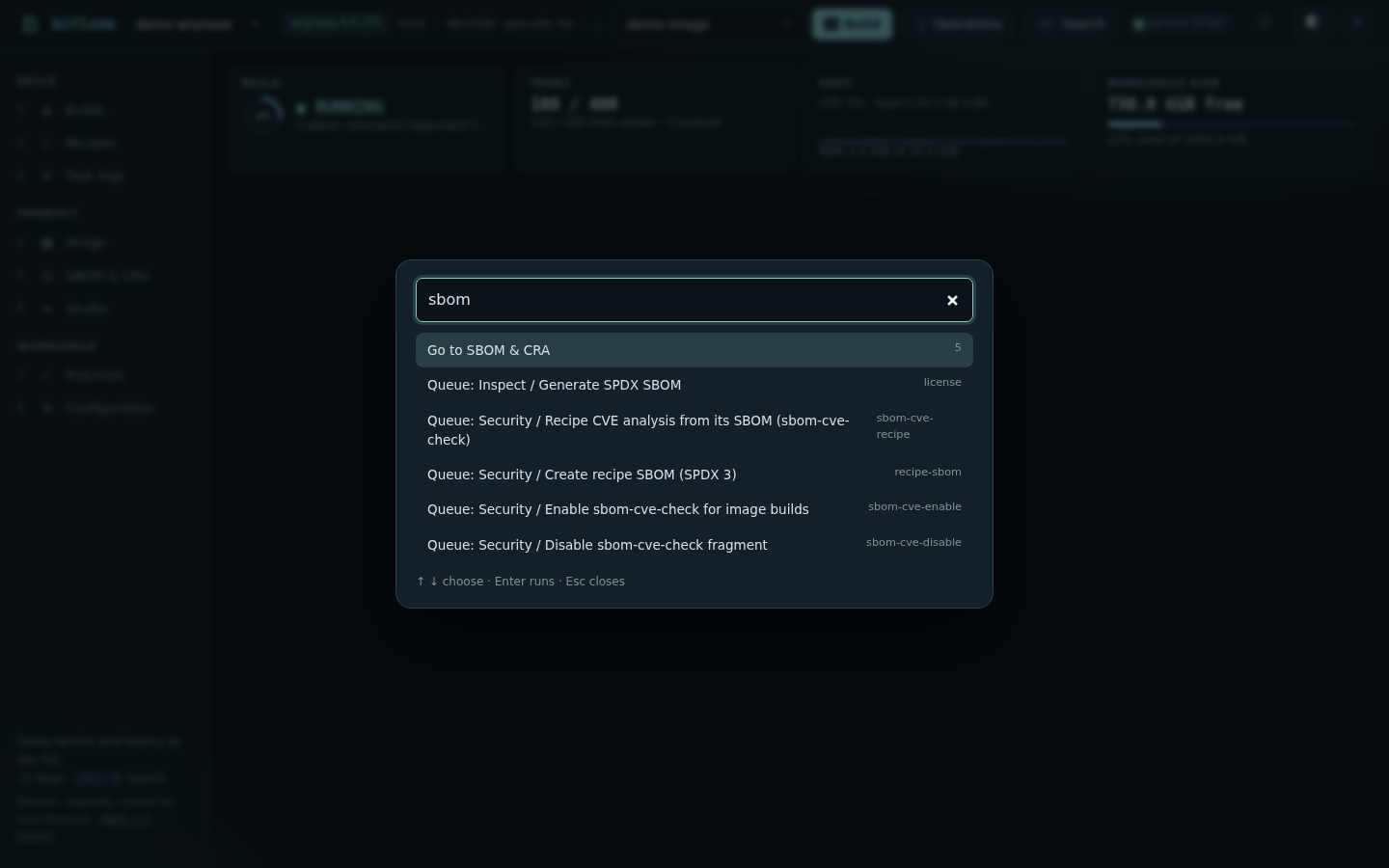
The operation dialog lists every non-interactive operation grouped like the TUI command center, previews the exact command and refuses operations your Yocto release does not provide, naming the alternative.
Phone and narrow windows#
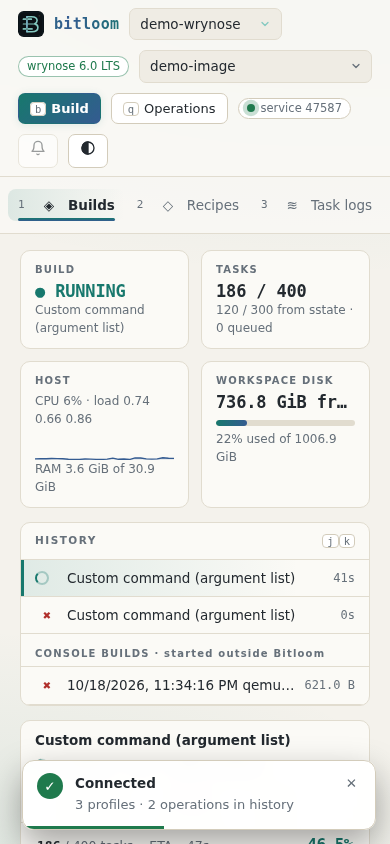
The layout collapses to one column, the navigation becomes a scrolling bar and toasts move to the bottom.
Screenshot Dashboard on a phone, light theme
Themes#
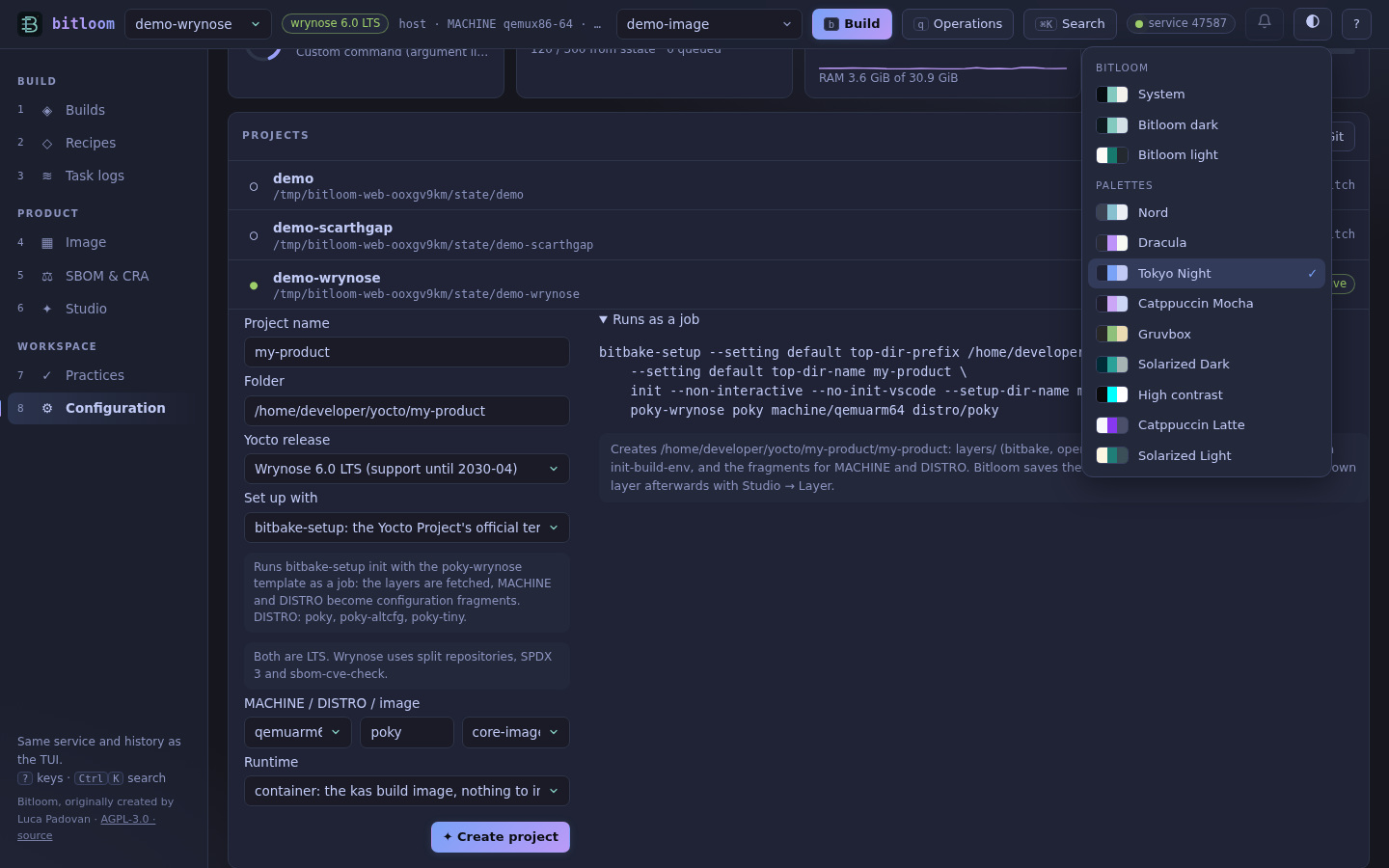
The round button in the top bar (or Ctrl+K → Theme: …) chooses how the dashboard looks: System (the default: light or dark as the operating system says), Bitloom dark and light, and the palettes the TUI also has: Ubuntu, Darcula, Monokai, Nord, Dracula, Tokyo Night, Catppuccin Mocha and Latte, Gruvbox, Solarized Dark and Light, High contrast. The choice is remembered by this browser and applied before the page draws, so it never flashes the default first. Status colours (success, warning, error) and chart colours keep their meaning in every theme; the chart palette is checked for colour-blind separation against each theme's background.
Screenshot The theme menu with Tokyo Night applied
API#
The page uses a small JSON API that scripts can use too (all calls need the X-Bitloom-Token header):
| Method and path | Purpose |
|---|---|
GET /api/state |
Profiles (with detected release), service status, history, host metrics |
GET /api/actions |
Operation catalogue with release windows |
POST /api/preview, POST /api/jobs |
Preview or queue {profile, action, values} |
GET /api/jobs/<id>/log?offset=N, ?q=…&errors=1 |
Incremental output or filtered search |
GET /api/jobs/<id>/report |
Summary, sstate, warnings, timings |
POST /api/jobs/<id>/stop, /retry |
`{mode: graceful |
GET /api/console, /api/console/log, /api/console/report |
Builds started outside Bitloom |
GET /api/compliance |
SBOM summaries, CRA checks, timeline, SBOM options |
GET /api/vulnerabilities, POST /api/vulnerabilities/scan |
Findings with filters; Grype scan of the newest SPDX SBOM |
GET /api/vulnerabilities/export?format=md |
The filtered findings as md, html, csv, json or sarif (attachment) |
GET /api/jobs/<id>/compare |
Comparison with the previous run of the same command |
GET/POST /api/notifications |
Build notification settings |
GET /api/workusage |
tmp/work usage per recipe |
/api/projects…, /api/setup… |
Projects and guided setup, see Projects |
GET /api/studio/fields, POST /api/studio/preview, /create |
Studio |
GET /api/metadata, /api/tasklogs, /api/tasklog, /api/health |
Read-only views |
Animation Animated tour of the web dashboard