 Bitloom docs
Image explorer
What did the build actually put on the device, where does each file come from, and how do you change it? The Image explorer answers from what BitBake left on disk after the build: no BitBake run, no device needed.
Open it with section 4 of the web dashboard, Ctrl+K → Explore the built image, or ask Which recipe installs… from anywhere (web, TUI, command line).
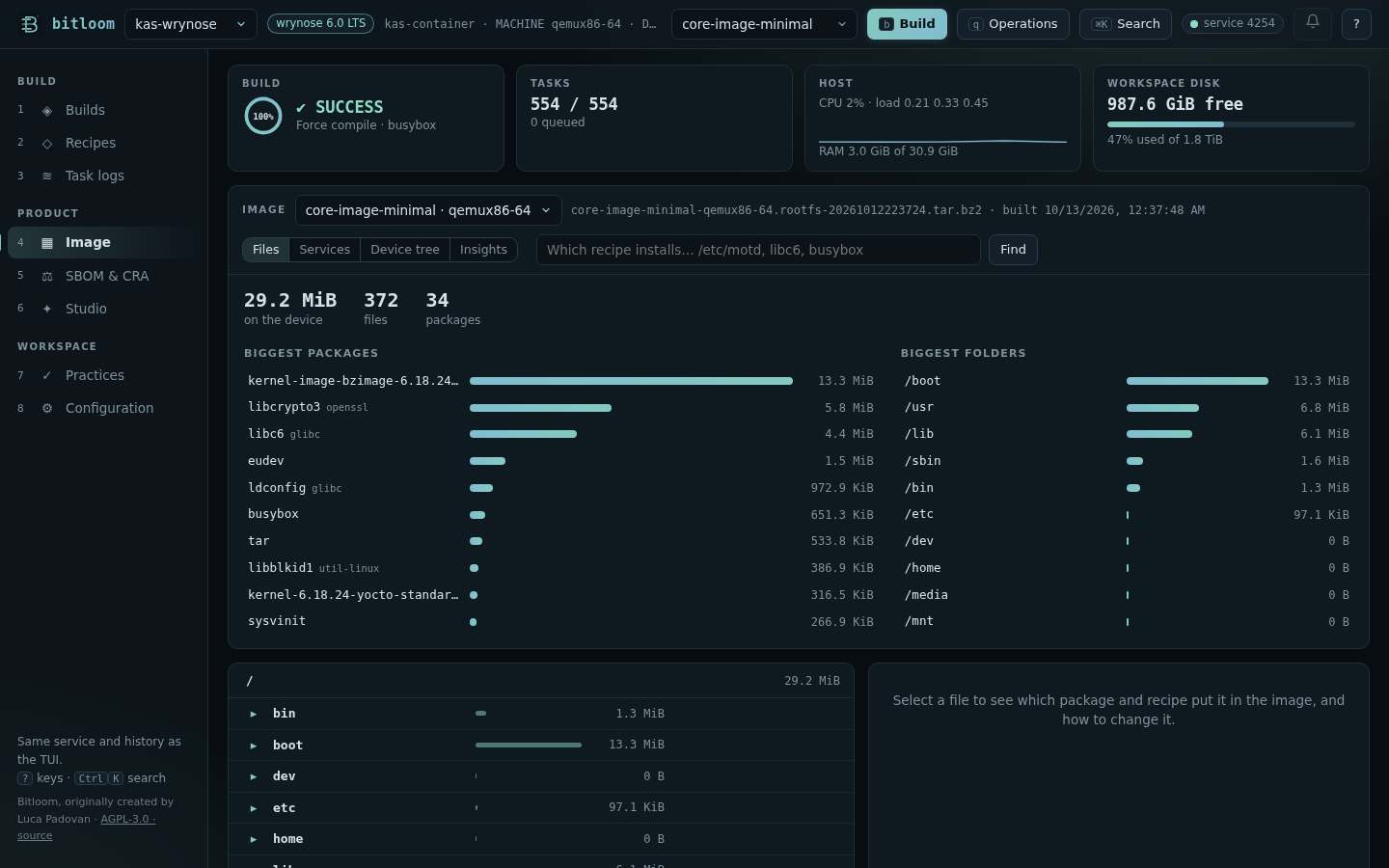
Screenshot The Image explorer on a real Wrynose core-image-minimal
What you see#
- The image of the active profile: every image built for every machine, newest first. Bitloom reads the root filesystem archive in
tmp/deploy/images/<machine>(tar.bz2,tar.gz,tar.xz, ortar.zstwhenzstdis installed), or therootfsfolder intmp/workwhile it still exists (withoutrm_work). Add a tar type toIMAGE_FSTYPESif your image only produces disk images. - Totals: the size on the device, the number of files and of packages.
- Biggest packages and biggest folders: where the space goes. Click a package to see which recipe builds it; click a folder to open it.
- The file tree, folder by folder, each entry with its size, a bar relative to the folder, and the package · recipe that installs it. Symbolic links show their target.
- The selected file: size, permissions, owner and group, the package and recipe, the layer (yours or upstream), the images that contain it and what pulls it in (the packages that depend on it, such as
packagegroup-core-boot), the existing.bbappendfiles of that recipe, and the content when it is a small text file.
What starts on the device#
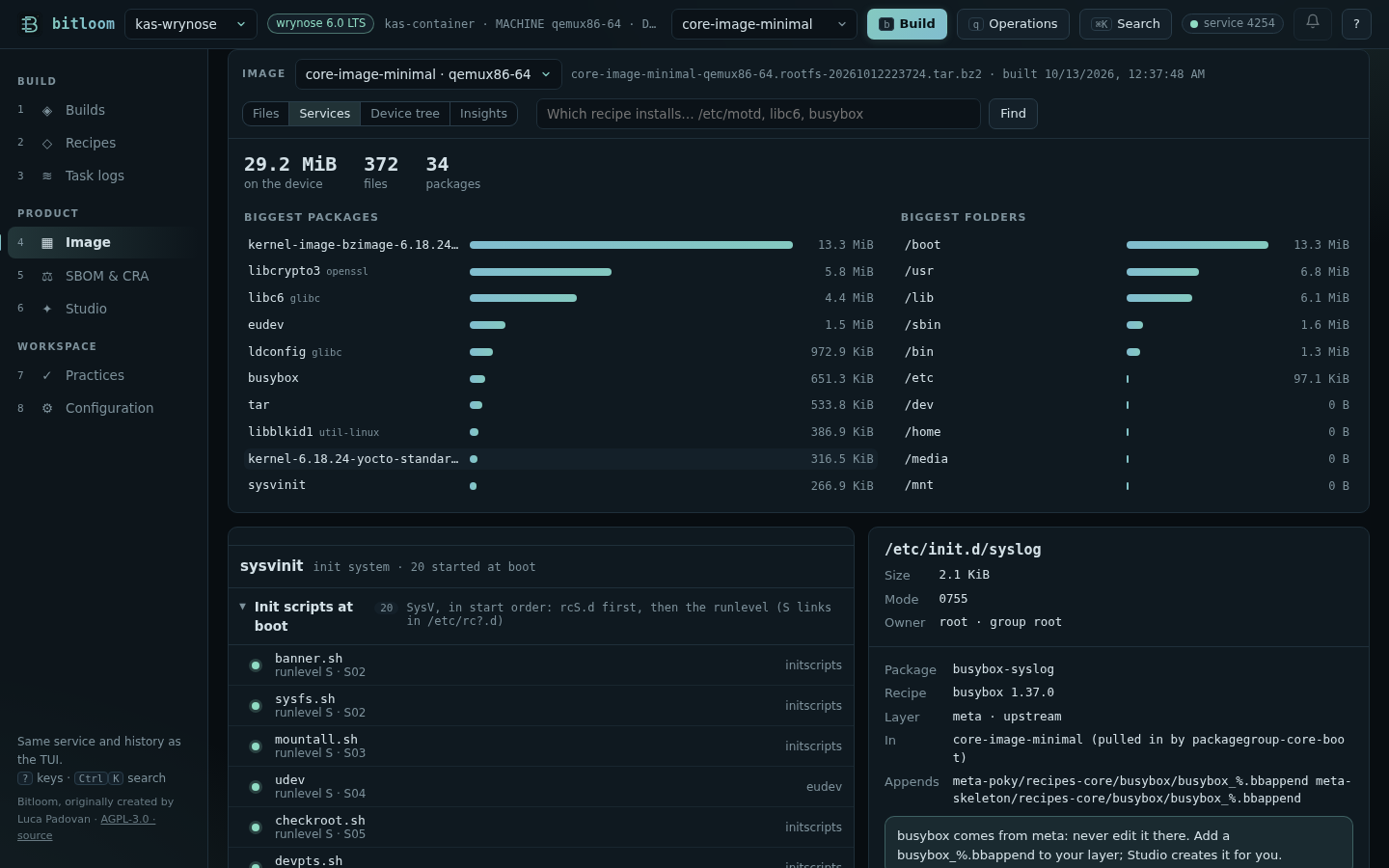
Services (next to Files) shows what the image runs and what reacts to it, read from the root filesystem, each entry with the package and recipe that installs it:
- the init system (systemd, SysV init or BusyBox init) and, with systemd, the default target;
- systemd units: the ones that start at boot (enabled by a link in
/etc/systemd/system/*.wants, with the target that wants them), the ones installed but not enabled (started on demand by a socket, D-Bus or another unit, or not at all) and the masked ones (linked to/dev/null), with their description andExecStart; - SysV init scripts in start order:
rcS.dfirst, then the runlevel, with theirSnumber; the scripts run only at shutdown and reboot, and the helpers linked nowhere, are listed apart; - udev rules in the order udev applies them, with the number of rules and their first comment; a file in
/etc/udev/rules.dreplaces the one with the same name in/lib, and a link to/dev/nulldisables it; - D-Bus: services started on request (their bus name and systemd unit) and bus policies.
Select an entry to open its file with the usual details: owner, package, recipe, layer and Change it with an append. To change what starts, append to the recipe (SYSTEMD_AUTO_ENABLE, SYSTEMD_SERVICE, INITSCRIPT_PARAMS) or take its package out of the image.
Screenshot Services of a real Wrynose core-image-minimal: init scripts in boot order, the selected script and its recipe
The same list is in the TUI (Analysis → Services in the image) and on the command line:
$ bitloom --services core-image-minimal
SERVICES IN core-image-minimal (qemux86-64)

init system  sysvinit

SYSV INIT SCRIPTS
  ● banner.sh                    runlevels S · order 02         initscripts (initscripts)
  ● sysfs.sh                     runlevels S · order 02         initscripts (initscripts)
  ● mountall.sh                  runlevels S · order 03         initscripts (initscripts)
  ● udev                         runlevels S · order 04         eudev (eudev)
…
Insights#
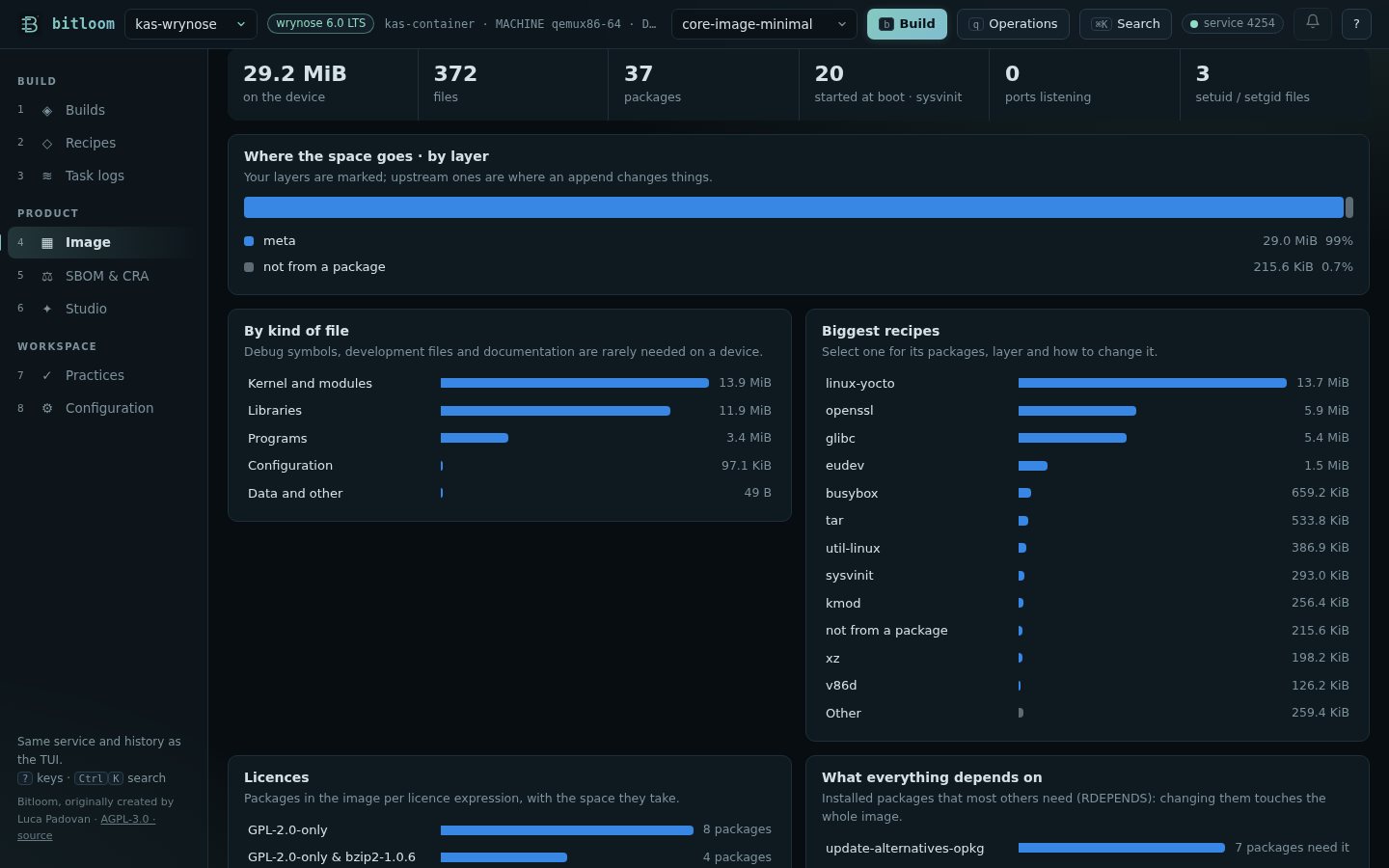
Insights turns the image into a few charts and the numbers behind them, computed from the root filesystem, pkgdata and the manifest:
- The headline: size on the device, files, packages, services started at boot, ports listening, setuid/setgid files.
- Where the space goes, by layer: one bar split by layer, your layers marked, so you see at once how much of the image is yours and how much an append could change.
- By kind of file: kernel and modules, libraries, programs, Python, configuration, firmware, and what rarely belongs on a device: documentation and locales, development files (headers, static libraries, pkg-config), debug symbols.
- Biggest recipes: select one for its packages, layer and Change it with an append.
- Licences: packages per licence expression, with the space they take; the tail folds into Other.
- What everything depends on: the installed packages most others need (from
RDEPENDS), the ones an update affects most. - What listens on the network: systemd socket units (
ListenStream,ListenDatagram),inetd.confservices, and server programs found in the image (OpenSSH and Dropbear with their configured port, web servers, DNS, MQTT, NTP, SNMP, Samba, telnet…), with whether they start at boot. - Security at a glance: the root password (none, locked or set), SSH allowing root login or empty passwords, a telnet server, setuid/setgid files, world-writable paths without the sticky bit, and how many bytes of development files and documentation could go, each with the setting that removes it.
Hover a bar for the exact values; every value is also written next to its bar. The colours follow the dashboard theme (light and dark), and only the layer chart uses several colours.
Screenshot Insights on a real Wrynose core-image-minimal
The same report for a terminal or a CI log, or as JSON:
$ bitloom --insights core-image-minimal
IMAGE INSIGHTS core-image-minimal (qemux86-64)

27.6 MiB on the device · 370 files · 36 packages · 20 started at boot (sysvinit) · 0 ports listening · 3 setuid/setgid files

BY KIND OF FILE
  Kernel and modules             12.0 MiB  43.3%
  Libraries                      11.0 MiB  39.8%
…
$ bitloom --insights --format json > image-insights.json
Device tree#
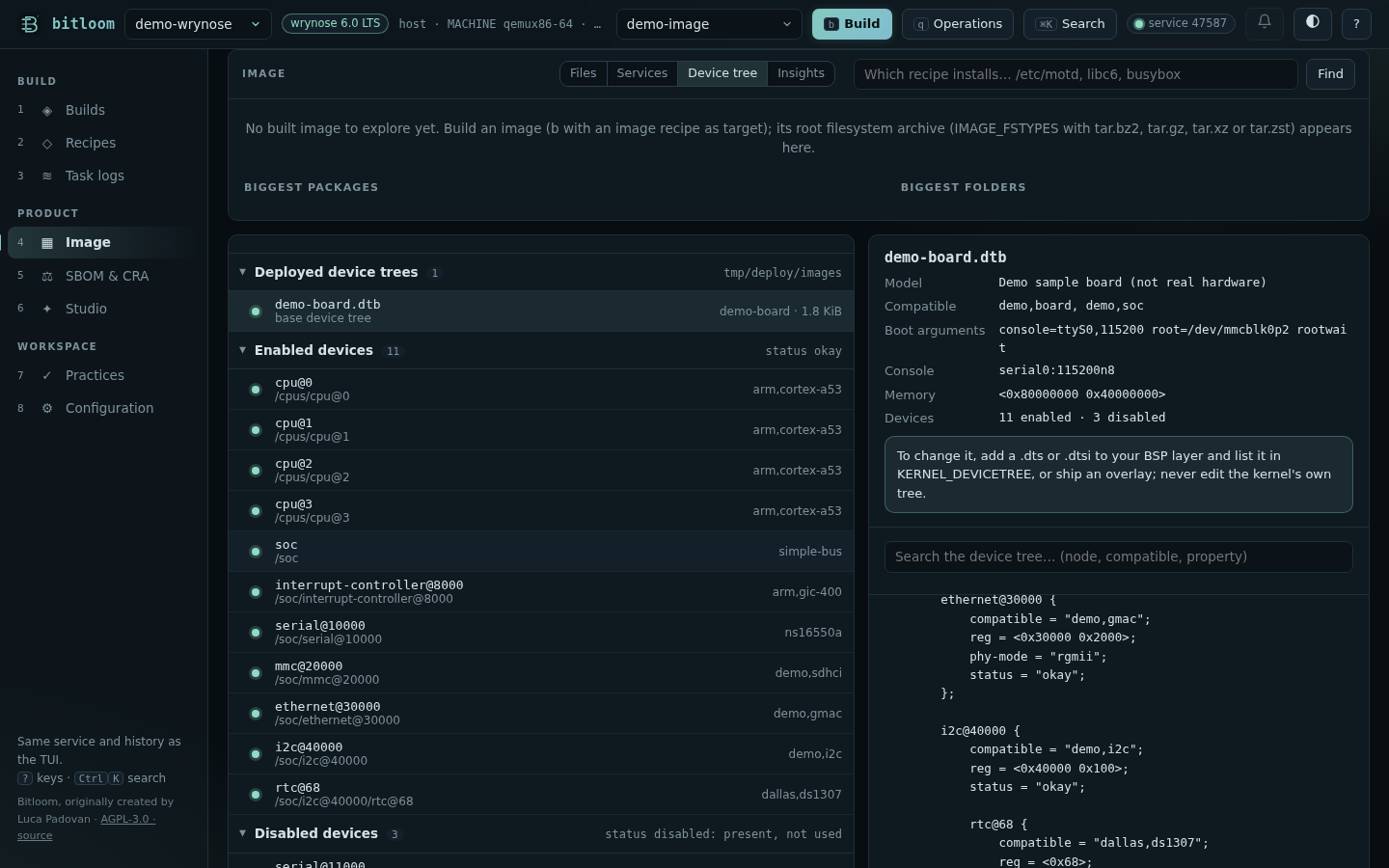
Device tree lists the .dtb and .dtbo files the build deployed in tmp/deploy/images/<machine> (the short names, not the versioned copies; the machine of the selected image first) and opens one decompiled, with no dtc needed: Bitloom reads the flattened device tree itself, and the DTS text matches what dtc -I dtb -O dts gives (verified by compiling it back with the build's own dtc).
- The board: model, compatible strings, boot arguments, the console (
stdout-path), memory. - Enabled devices and disabled devices (
status = "disabled"), each with its path and first compatible string: select one to jump to its node. - The DTS text with search: type,
Enterfor the next match,Shift+Enterfor the previous one. Phandles are shown as&labelwhere the meaning is clear (interrupt-parent = <&interrupt_controller_8000>). - An overlay (
.dtbo) is marked as such: the bootloader applies it on top of a base tree.
To change a device tree, add a .dts or .dtsi to your BSP layer and list it in KERNEL_DEVICETREE, or ship an overlay; never edit the kernel's own tree. x86 and most QEMU machines deploy no device tree; the demo workspace has a labelled sample board.
Screenshot The device tree of the demo board: enabled and disabled devices, the DTS with search
$ bitloom --devicetree                      # what was deployed
demo-board           demo-board.dtb                           base
$ bitloom --devicetree demo-board.dtb       # summary; --format dts for the text, --format json for tools
DEVICE TREE demo-board.dtb (demo-board)

model        Demo sample board (not real hardware)
compatible   demo,board, demo,soc
bootargs     console=ttyS0,115200 root=/dev/mmcblk0p2 rootwait
…
In the TUI: Analysis → Device tree.
Change it#
Under the file, Bitloom says what to do:
- the recipe comes from an upstream layer (Poky, OE-Core, meta-yocto…): never edit it there. Change it with an append opens Studio on a Recipe append already filled in: the recipe, its folder (
recipes-core…) and, for a file in/etc, the file itself, starting from its current content on the device. Edit it with edit before creating, review, create, rebuild; - your layer already appends that recipe: change your append;
- the recipe is in your layer: edit the recipe.
Some files are in no package: /etc/passwd, /etc/group, /etc/shadow, /etc/ld.so.cache… They are made while the image is assembled, by useradd, ldconfig, package post-install scripts or the image recipe's ROOTFS_POSTPROCESS_COMMAND. Bitloom says so and points to where to change them (for example EXTRA_USERS_PARAMS in the image recipe for users).
Animation From the image to the append that changes /etc/motd
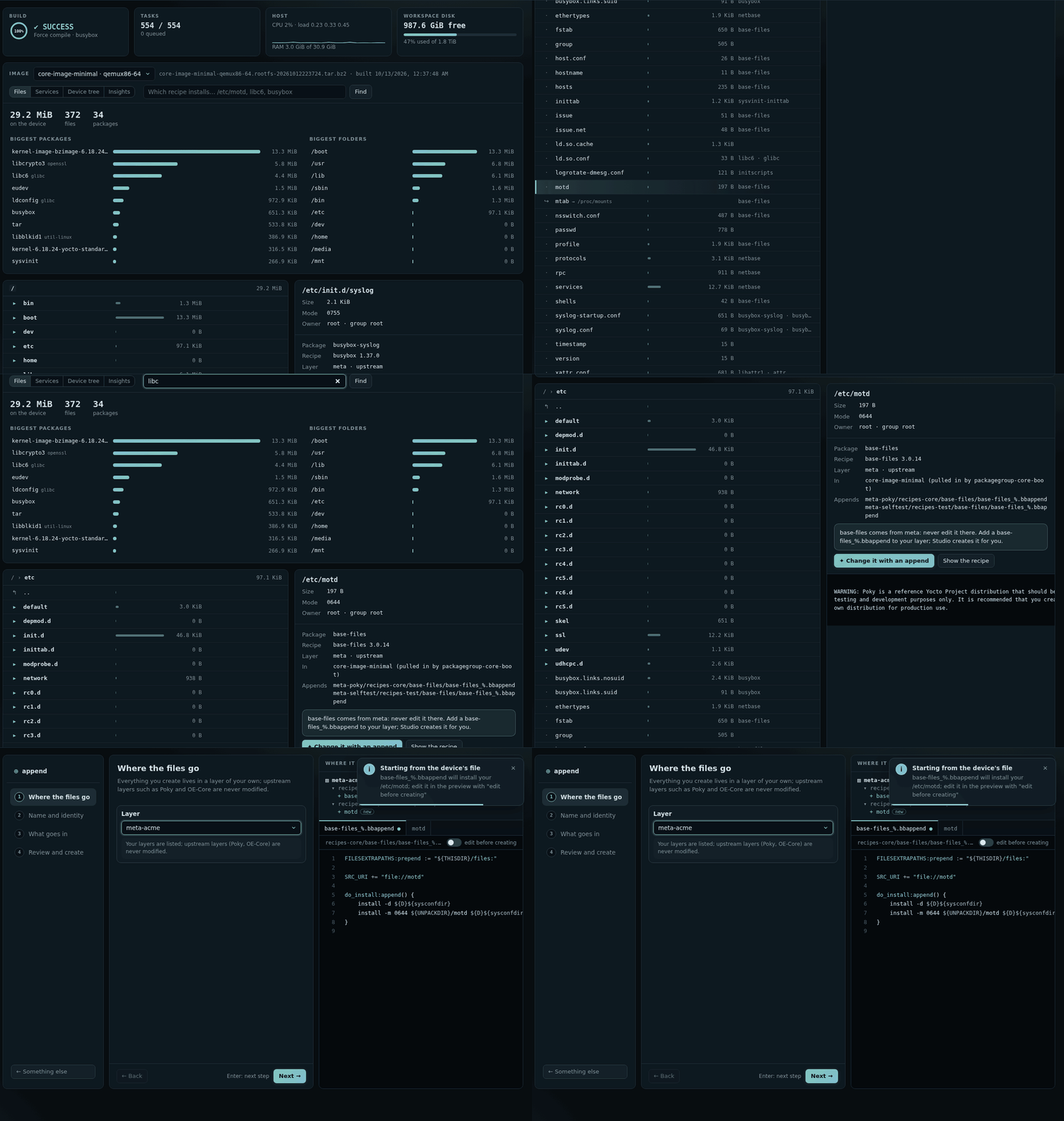
Which recipe installs…?#
Type a file on the device (/etc/motd), a package as installed (libc6) or a recipe (glibc) in the Image view's search, the Ctrl+K palette, the TUI's Analysis → Which recipe installs…, or on the command line:
$ bitloom --who-installs /etc/inittab
WHICH RECIPE INSTALLS: /etc/inittab

sysvinit-inittab (sysvinit-inittab) ships this file
  recipe   sysvinit-inittab 2.88dsf   …/meta/recipes-core/sysvinit/sysvinit-inittab_2.88dsf.bb
  layer    meta  (upstream)
  file     /etc/inittab
  image    core-image-minimal (qemux86-64)  pulled in by sysvinit
  change   add recipes-core/sysvinit-inittab/sysvinit-inittab_%.bbappend to your layer (Studio → Recipe append)
It is the same information as oe-pkgdata-util find-path and lookup-recipe, plus the layer, the images, the dependants and the advice, read from tmp/pkgdata/<machine>/runtime and the image manifests. Package renames are followed (libc6 is the glibc package). A file name without a path (inittab) also works. It answers for what has been packaged: build the recipe or the image once first.
Practical limits#
- Ownership comes from package data (
FILES_INFO); files created at image assembly time have no package, as explained above. - Disk images (
ext4,wic) are not opened: Bitloom needs a tar archive or the rootfs folder. - Very large images take a few seconds the first time (the archive is read once, then cached until it changes).
- Owners come from the archive. The
rootfsfolder intmp/workbelongs to your build user (pseudo keeps the real owners in its own database), so owners are not shown for it. - The TUI offers Which recipe installs… and Services in the image in Analysis and the rootfs inventory in Artifacts (
i); the folder-by-folder explorer is in the web dashboard.