Using the console
This page is for whoever actually ships the update. It assumes no command line, no API and no knowledge of how any of it works underneath. If you can read a table and press a button, you can do everything here.
Nothing you press is irreversible in one click. Anything that reaches a device asks you to confirm and tells you how many machines it will touch first. Anything that halts, freezes or rolls back can be undone. The only thing you cannot take back is an artifact you deleted.
A tour of the console
The list down the left side is everything there is. It is grouped, and it hides what the server does not support or what your account may not see — so if a screen below is missing for you, that is why.
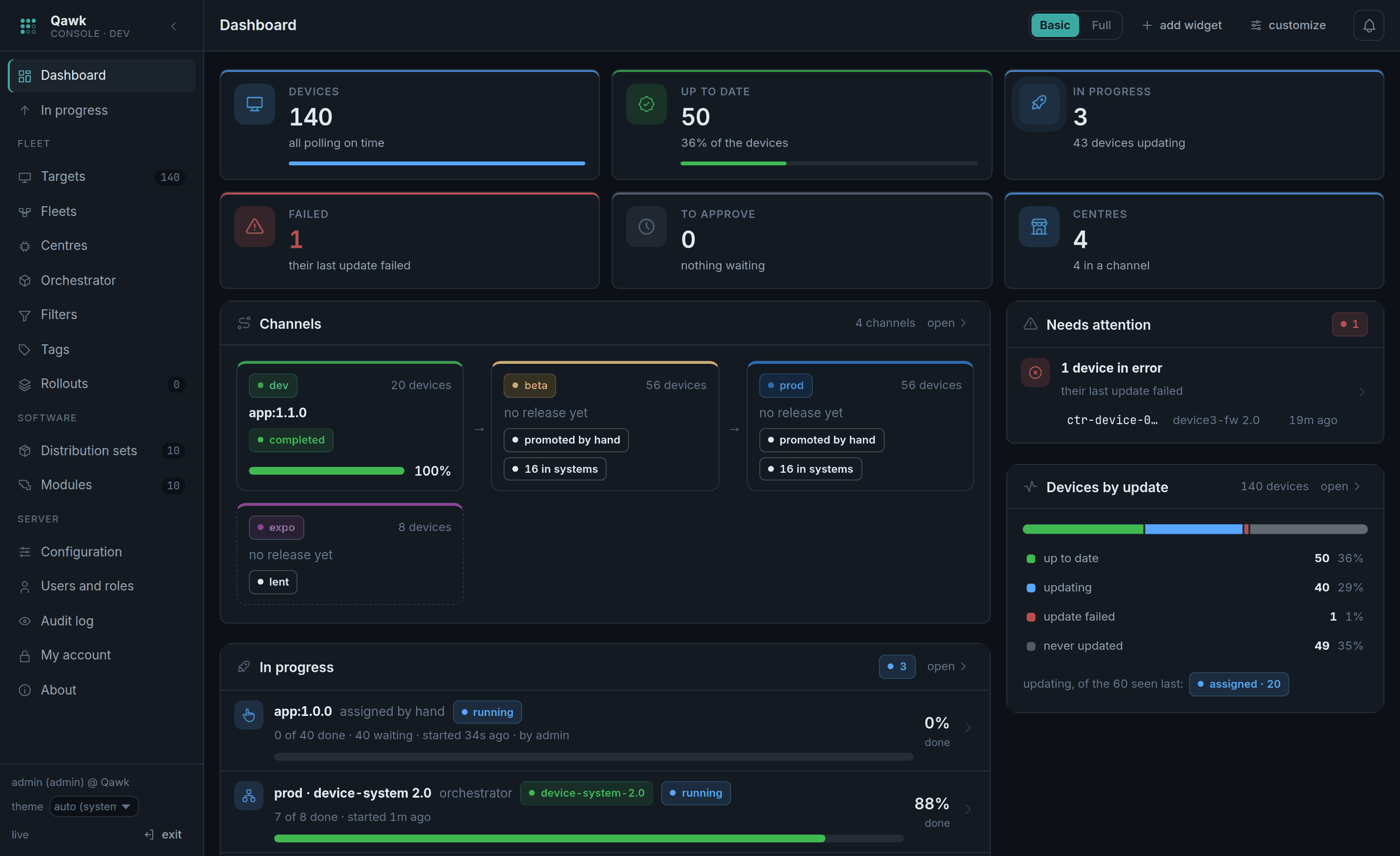
The screens you will use
| Screen | What it is for | You are here when… |
|---|---|---|
| Dashboard | The state of everything, in cards you arrange yourself. | you want to know if anything is wrong. |
| In progress | Every update happening right now, with download bars. | you pressed go and want to watch. |
| Targets | Every device. Search, filter, and pick the columns you care about. | you are looking for one machine. |
| Fleets | The channels — dev, beta, prod — and the pipeline between them. | you are shipping a release. This is the main screen. |
| Centres | Every centre and which channel it is in. | a site should move from beta to prod. |
| Orchestrator | Systems, their manifests, and deployments over them. | machines that work together need updating. |
| Distribution sets | The things you can actually give a device. | a new build needs uploading. |
| Modules | The pieces a distribution set is made of, and their files. | you are assembling a new set. |
The rest
Filters are saved searches, which can also auto-assign a set to whatever matches them. Tags label devices and sets by hand. Rollouts are hawkBit's own staged deployments — a separate tool from Fleets, useful for a one-off campaign that does not fit your channels. Configuration, Users and roles and the Audit log are the server's settings and who did what. My account is your password and your API tokens.
Things that are true on every screen
- Everything updates itself. Numbers, bars and rows follow the server without reloading. If a value has not changed, it is because it has not changed — there is no refresh button to hunt for and no stale page.
- Clicking a row opens a drawer on the right with the detail, and the drawer follows the thing it is showing while it changes.
- Notifications appear at the corner and stay out of the way. The bell counts things waiting for you — a release wanting your approval.
- Light or dark is in the top bar, and it is remembered.
Ship an update, step by step
This is the whole job, from a file on your disk to a fleet running it. Follow it in order the first time.
- Put the software in.
Modules → new module. Give it a name and a version, choose its type (os,application), and upload the file. Qawk checks the file's hash against what you declared before it accepts it — if that check fails, the upload was corrupted and you want to know now, not on a device. - Bundle it into something you can give out.
Distribution sets → new set. Name and version it (app,1.2.0), and add the modules. A set that is missing a module its type says is mandatory is incomplete, and Qawk will refuse to assign it — deliberately. Fix it before you go on. - Give it to the first channel.
Fleets → the channel with no upstream, usuallydev→ release. Pick the set. If that channel has systems in it, pick a manifest too — that is how the machines that work together get their matching versions. Press it, and the release starts. - Watch it land.
The channel's card fills as devices take it. The numbers under it are the ones that matter: how many run it, how many are working on it, how many failed. Open the drawer to see which. - Promote it onward.
On the next channel, press promote. Before anything happens, Qawk shows you the gate: a list with a ✓ or a ✗ against each condition. If every line is ✓, promote. If one is ✗, it tells you exactly what is missing — usually "it has not been in beta long enough". - Get it approved, if the channel asks.
A channel can require a second person. The release then waits instead of going out, and appears under the bell for everyone who may approve. The person who asked cannot approve it — that is the point of asking. - Let it finish.
A release is complete when the standalone devices run the set and the orchestrator has finished with the systems. Until both are true, the channel says so, and the next gate will not open.
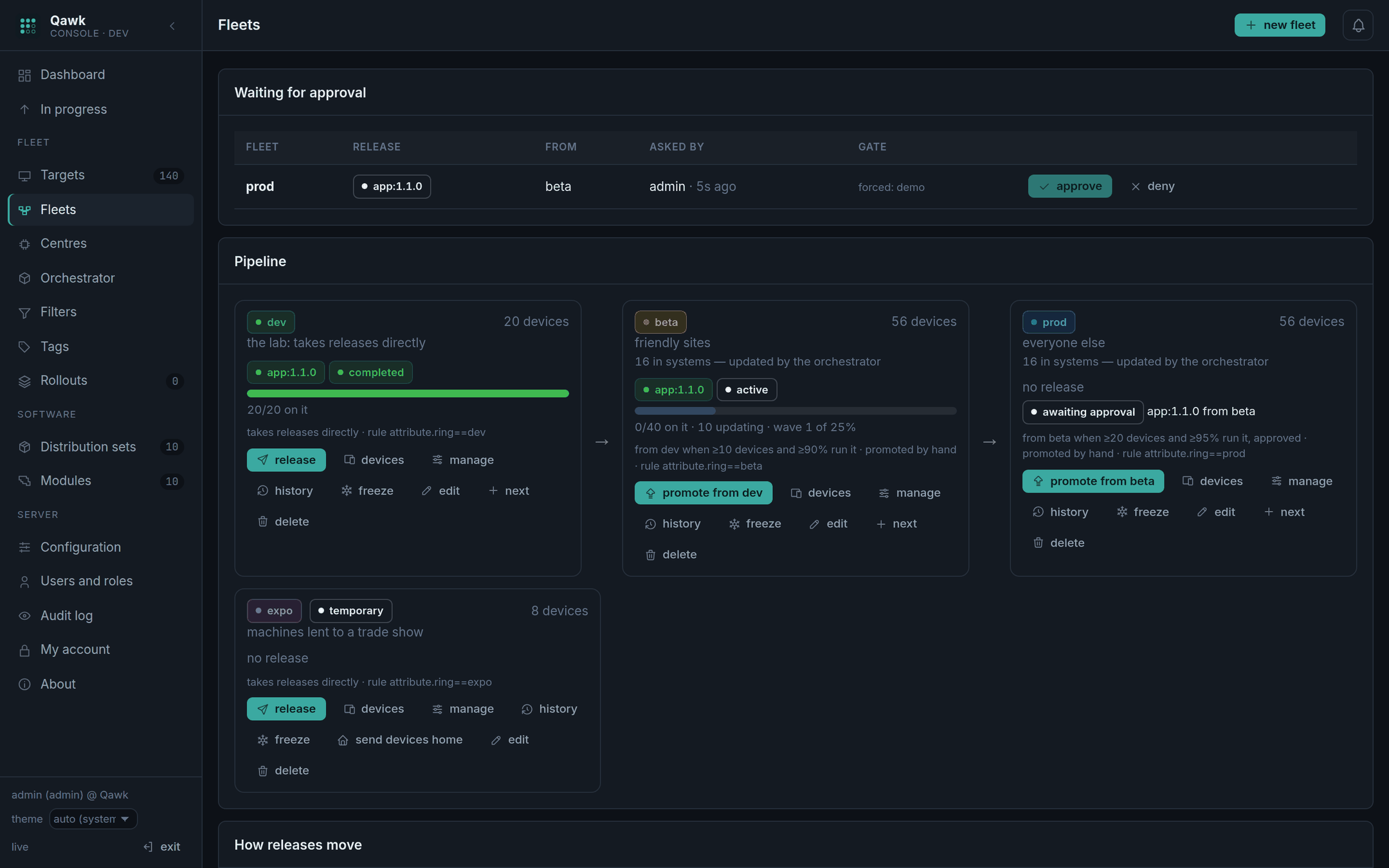
dev has
finished (20 of 20), beta is part way through its first wave of 25%,
and prod is awaiting approval — so the release sits in the
queue at the top of the screen until somebody other than the person who asked
presses approve. The arrows between the cards are the pipeline.The other way: straight at some devices
Sometimes you do not want the pipeline — one machine, one set, now. Targets → tick the devices → deploy. You can also deploy to everything matching a query, and the dialog shows you a live count of how many devices that is before you commit. Press check the devices first and it will tell you which of them cannot take the set and why.
Mode: forced or soft. Forced means install it now. Soft means the device may choose its moment. There is also download only (get the bytes now, install later) and a maintenance window (download any time, install only inside these hours).
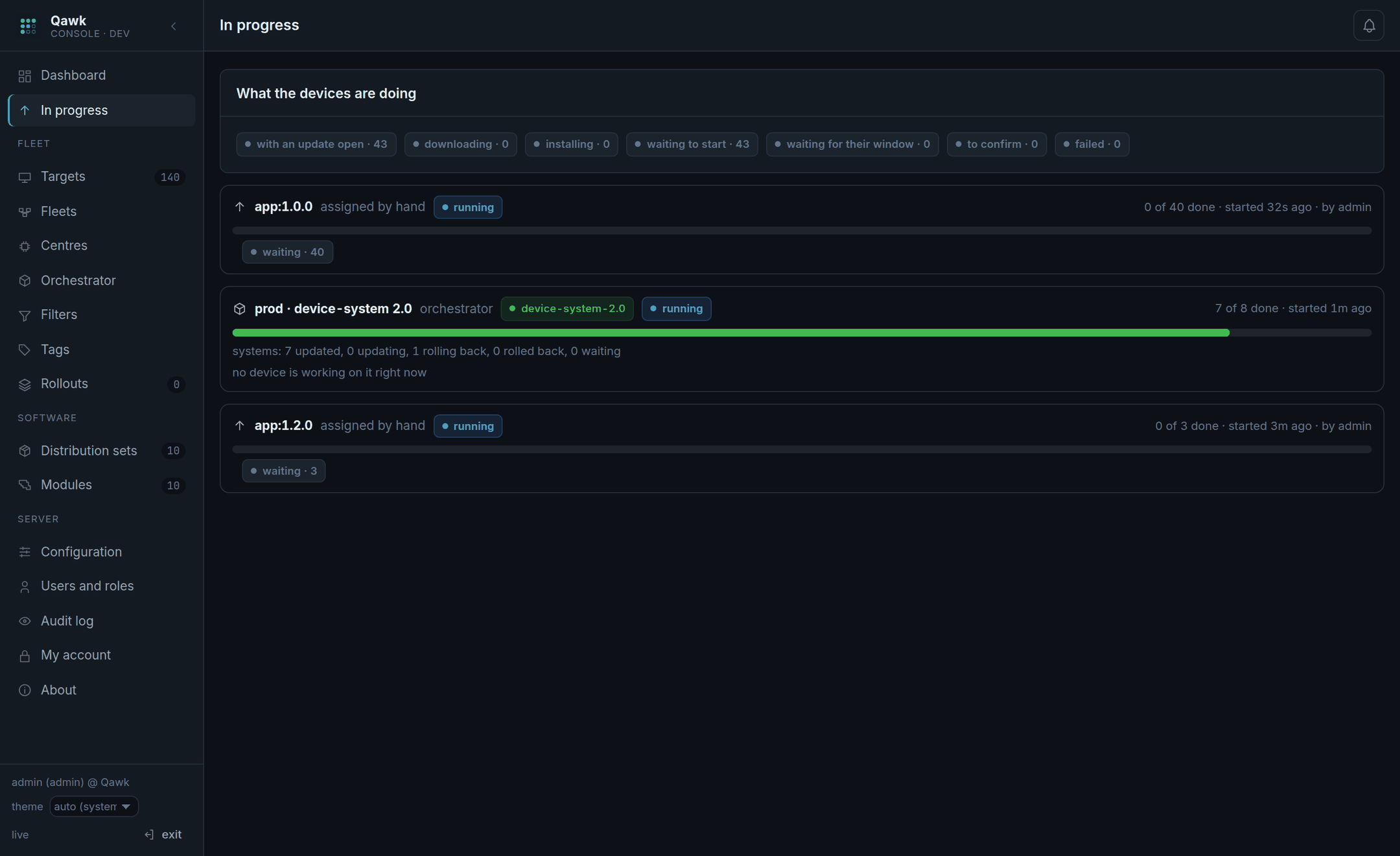
Reading what you see
Device status
| Says | Means | Do |
|---|---|---|
| in sync | It runs what it was given. | Nothing. |
| pending | It has been given something and is working on it. | Wait. |
| error | The last update failed on the device. | Open it and read what it reported. |
| registered | It has called in but has never been given anything. | Nothing, usually — a channel rule will pick it up. |
| unknown | It has never called in. | Check the device can reach the server at all. |
Release status
| Says | Means |
|---|---|
| active | Going out now. |
| waiting for approval | Someone else has to say yes. |
| halted | Qawk stopped it — too many devices failed. Nothing more will be sent until a person resumes it. |
| completed | Everything that should have it, has it. |
| denied | Someone said no. It never went out. |
| superseded | A newer release replaced it. |
System status, on the Orchestrator screen
| Says | Means |
|---|---|
| pending | Its turn has not come. |
| running | Its components are updating, in the manifest's order. |
| succeeded | Every component is on the manifest's set. |
| rolling back | Something in it failed; every device it updated is being put back. |
| rolled back | It is back on what it ran before. |
| skipped | It was never started — the deployment was aborted, too many others had failed, or it left the channel first. |
Bars and colours
A bar that is filling is progress against a total. A bar with a calm moving band means devices are working and there is nothing to count yet — it is not stuck, it is waiting on machines. Green is done, amber is in progress, red is failed, and grey is not started.
When something goes wrong
The release halted by itself
This is the system working. Too many devices failed, so Qawk stopped sending it to more. Open the channel, read which devices failed and what they reported. Then either fix the build and release a new version, or — if the failures were not the build's fault — press resume. Resuming marks the failures already seen as seen: only new ones can halt it again, so you will not have to press it twice for the same problem.
The gate will not open
Read the report. Every line is a condition and it says the actual numbers against the required ones. The common ones:
- "it has been in beta for 41 minutes (at least 120)" — wait, or the channel's soak time is set longer than you want.
- "94% of beta runs it (at least 95%)" — some devices have not taken it. Often a handful are switched off.
- "the orchestrator took beta's systems… running" — the systems are not finished yet.
If you have to go anyway, force the gate. It requires permission and a written reason, and the reason is kept in the release's history and the audit log for ever. That is by design: forcing a gate is allowed, forgetting that you did is not.
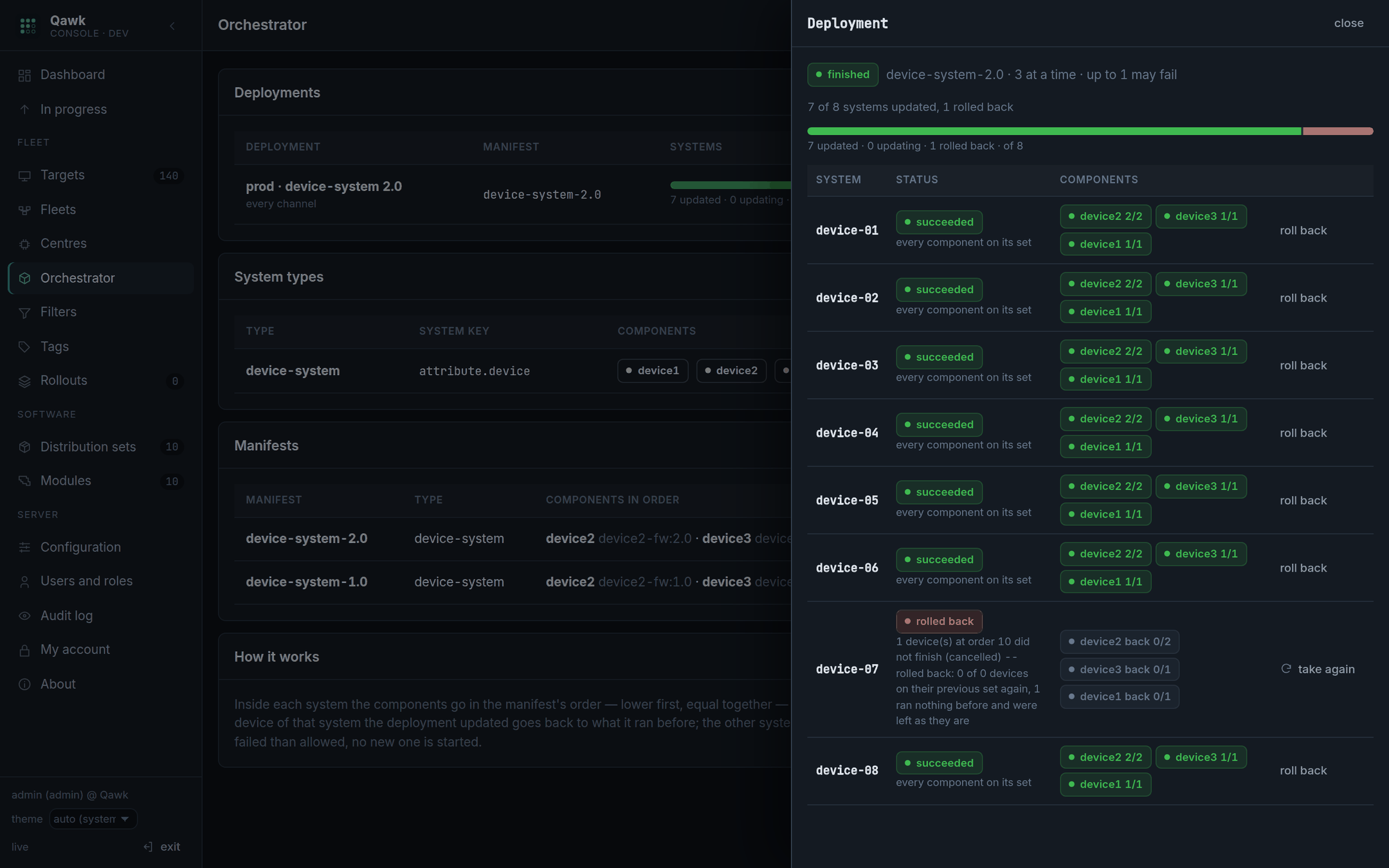
device-07 failed and went back on
its own. Its reason says which order failed and how many devices went back, and
take again is the way forward once you know why.A system rolled back
One device of it failed, so all of them went back to what they ran before. Open the deployment and the system's row tells you which component failed and at which order. The other systems carried on — one bad machine does not stop the fleet. If more systems failed than the deployment allows, no new system is started and the whole thing stops.
I cannot move this device into that channel
Its centre is in a different channel, and the centre would take it back within seconds. Either move the whole centre (Centres → tick → move), or, for one machine going to a trade show, lend it to a temporary channel — it remembers where it came from and can be sent home.
I need everything to stop, now
Freeze the channel. Fleets → the channel → freeze, with a reason. No release reaches it until you lift it. You can set a start and an end, so "no updates during league nights" can be arranged in advance. The reason is shown to anyone who tries to release into it, so nobody has to ask why.
A fleet to practise on
You should not learn what the halt button does on the night a release
goes wrong. qawk-sim gives you as many devices as you like, in
whatever shape you like, that behave like real ones — and fail when you tell them
to. Nothing in this section touches hardware.
If you started the demo, you already have about 270 of them. To point some at a server of your own:
# 40 devices in a channel called lab
demo/simulate.sh --url http://localhost:8080 --token <gateway token> --fleet lab:40

# the same, spread over two centres -- so you can move a place, not a list
demo/simulate.sh --url http://localhost:8080 --token <gateway token> -- -fleet lab:40:centers=1-2

demo/simulate.sh --list     # what is running
demo/simulate.sh --stop     # stop them all
Against the demo you can leave --token out — the script reads it
from demo/.gateway-token.
Five experiments worth doing
| To see… | Do this | Then watch |
|---|---|---|
| A release filling a channel | --fleet dev:20 --fleet beta:40, then release a set into dev. |
Fleets — the bar fills, the counts move. In progress — the individual devices. |
| A release halting on failures | Release a set whose module name contains broken. The simulated devices fail anything so named. |
The channel goes halted within a minute, saying how many failed against the threshold. Then press resume and watch it not halt again for the same devices. |
| A fleet that is not perfect | demo/simulate.sh --fleet prod:200 -- -fail-rate 0.1 — one deployment in ten fails at random. |
What a real rollout looks like, and whether your error threshold is set somewhere sane. |
| Waves | Set the channel's wave percent to 25 with 200 devices, then release. | Four waves instead of one flood. Set -install-min 30s to make each wave last long enough to see. |
| A centre moving between channels | -- -fleet lab:40:centers=1-2, then Centres → tick c01 → move. |
Its devices follow within a minute and take the new channel's release. Watch on channel catch up with devices. |
| A whole system rolling back | --systems 16, then in the extra arguments:-- -fail-where device=device-07,device_type=device3,set=2.0 |
Deploy manifest device-system-2.0 in Orchestrator. Fifteen systems succeed; device-07 fails at one component and the whole of it goes back to what it ran before. |
A fleet shaped like yours
Simulated devices report the same attributes real ones do, so channels rules, centres and system types pick them up exactly as they would the real thing:
# three channels and a name to tell this run from others
demo/simulate.sh --name shop --url http://localhost:8080 --token <token> \
  --fleet dev:20 --fleet beta:40 --fleet prod:500

# 16 systems -- a device1 with two device2 and a device3 -- across four centres
demo/simulate.sh --name centres --url http://localhost:8080 --token <token> --systems 16
Each device is named <name>-<group>-<n>
(shop-prod-017), so a run is easy to find and easy to stop:
demo/simulate.sh --stop shop. Watch what they are doing with
docker logs -f qawk-sim-shop.
They download nothing. A simulated device waits a random time and reports
finished — so you can run five hundred of them on a laptop. It does
answer a deployment outside its maintenance window the way SWUpdate does, and a
download-only one as downloaded, so those behaviours are real.
Do it on a scratch server. Simulated devices register themselves and create data. Point them at the demo, or at a server you are happy to throw away — never at the one updating real machines.
Everything after -- goes to qawk-sim unchanged. Full
list: docker run --rm --entrypoint qawk-sim qawk:local -help, and
Connecting devices.
Making it yours
- The dashboard is yours. Drag the cards, resize them, add and remove them from the tray. It is saved per account.
- Table columns are yours. Every table lets you choose columns and their order, and remembers.
- Filters are saved searches. Build one on Targets, save it, and it is one click from then on. A filter can also auto-assign a set to whatever matches it, which is how "every new device of this type gets this firmware" is arranged once.
- API tokens are under My account, for scripts and CI. The token is shown once. It acts with your permissions at the time it is used, so it loses access the moment your role does.
Running the console yourself
The console is a page and a small proxy. It keeps no credentials: your browser's own sign-in is passed through, and closing the tab signs you out.
python3 console/serve.py --port 8090 --hawkbit http://localhost:8080It works against a stock hawkBit 1.1.0 too — point it there and it shows the hawkBit part and hides the rest.