


Why pkgtui
The everyday basics of browsing, searching and acting on packages — done once, done well, for every package manager on the machine at once.
●Every backend, one dashboard
A tab per package manager found on the system — apt, snap, flatpak, brew, macports — each with its own state. Search, filter, sort by size, view reverse dependencies.
▲Real live output
Install/remove/upgrade run in a real pseudo-terminal, shown live in a bordered box. sudo prompts and debconf dialogs work exactly as they would from the command line.
▲Upgrade all, with a preview
See exactly which packages will change, security updates called out separately, before you confirm anything.
◆11 built-in themes
From classic Dracula, Nord and Gruvbox to Catppuccin, Tokyo Night and Ubuntu's own palette. Browse them live, no restart needed.
○Rebind every key
Change any shortcut from inside the app, live, with a one-key reset back to defaults if it goes sideways.
●Sources & changelog aware
Add or remove apt PPAs and flatpak remotes, and read a package's changelog before upgrading it, without leaving the TUI.
Beyond wrapping the package managers
None of these tools answers any of this on its own — pkgtui does, from the same dashboard.
Old kernel packages apt's own autoremove deliberately leaves behind, leftover config files from already-removed packages, disabled snap revisions nobody ever revisits, Homebrew's cached downloads, inactive MacPorts versions, unused flatpak runtimes — with total reclaimable space and a direct purge.
Manual install or pulled in as a dependency, plus a navigable ├──/└── tree of reverse dependencies with a breadcrumb trail — drill into any of them to ask the same question again.
Packages installed through more than one backend at once — apt and snap, apt and flatpak, brew and MacPorts — and snaps that haven't been refreshed in 6+ months, using the snap's own on-disk file timestamp, not locale-dependent text.
Whether silent background upgrades are enabled, what the last automatic run actually touched, and when the next one is scheduled — normally visible only by digging through log files by hand.
Pick from every version apt-cache madison knows about across your configured repos — useful right after an upgrade turns out to be the one you wanted to avoid.
Snap's own idiomatic undo, from inside the TUI: restores the previous revision's binary and its data/config, not just an older version number.
Installed packages ranked by disk usage as a bar chart, for every backend that can report one — snap has no size column in "snap list" and brew reports none at all, so pkgtui measures the revision file or the keg itself.
Packages a conservative apt-get upgrade would leave behind because it needs to install or remove something else first — distinct from an explicit hold. "Upgrade all" already resolves most of these; this shows which, and why. Also catches packages Ubuntu's phased update rollout is holding back, which neither a plain upgrade nor "Upgrade all" will touch until the rollout reaches this machine.
Every privileged action run this session, both backends together, with a timestamp and success/failure — a running record of what you actually did.
In action
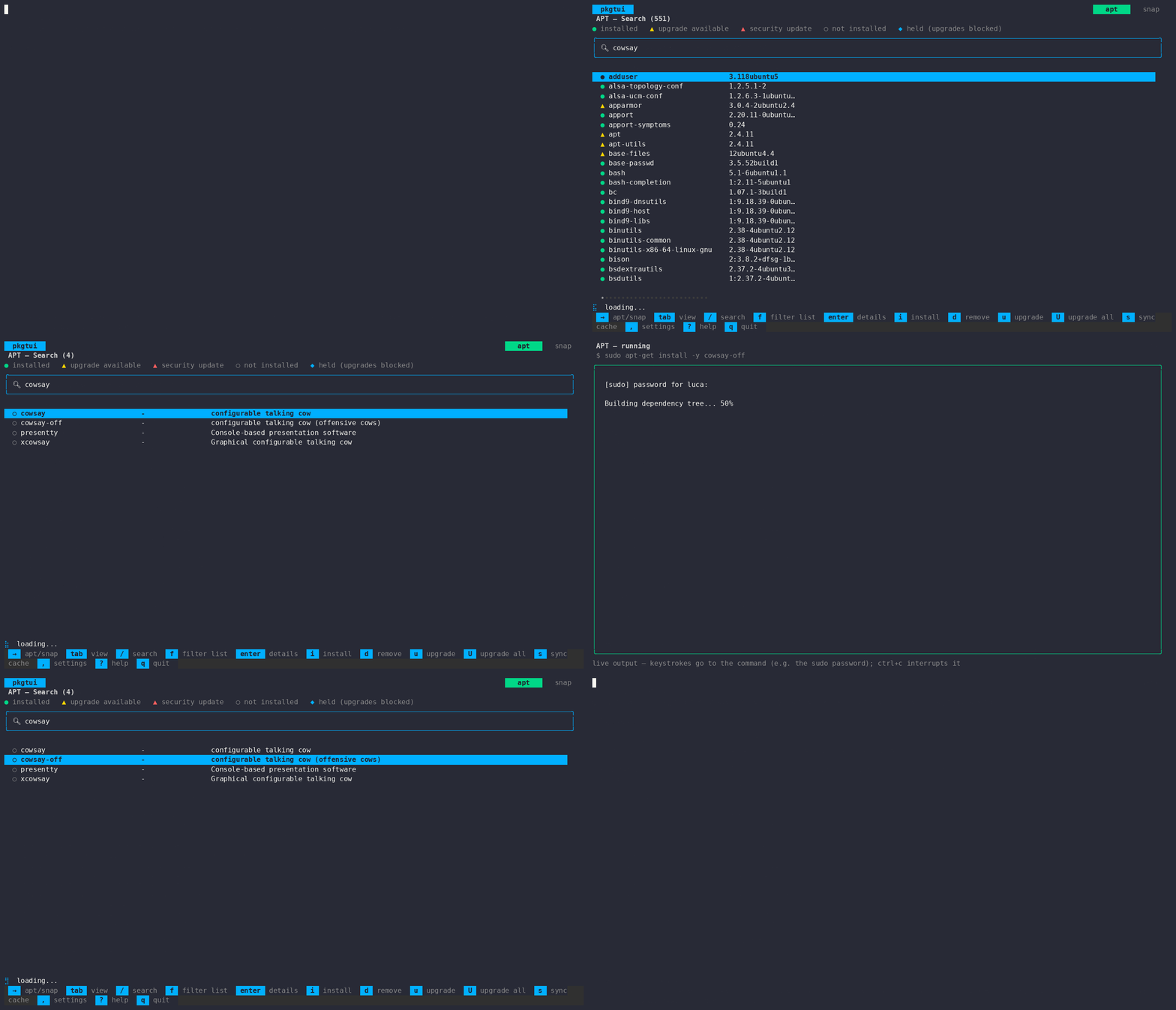
Searching an apt package, its dependency tree (W), and the disk-usage metrics dashboard (M).
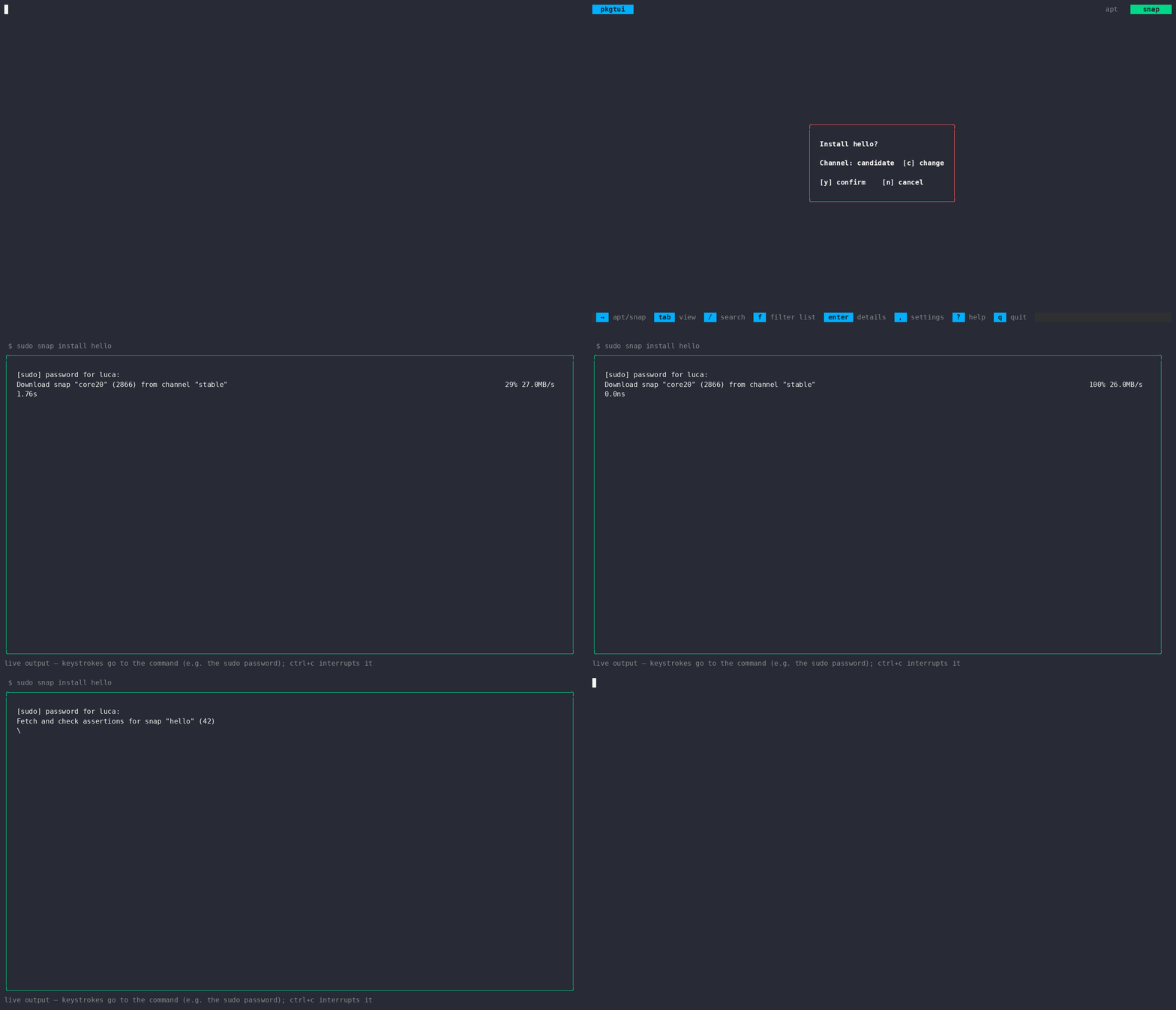
Same flow on snap, including the channel picker (c to cycle stable/candidate/beta/edge).
Installation
No verification/store required — grab the asset that fits and install it locally.
# replace <version> with the latest release number, no leading "v"
curl -fLO https://github.com/padovanl/pkgtui/releases/latest/download/pkgtui_<version>_amd64.deb
sudo apt install ./pkgtui_<version>_amd64.deb
# side-loaded, classic confinement — not on the Snap Store
curl -fLO https://github.com/padovanl/pkgtui/releases/latest/download/pkgtui_<version>_amd64.snap
sudo snap install --dangerous --classic pkgtui_<version>_amd64.snap
curl -fLO https://github.com/padovanl/pkgtui/releases/latest/download/pkgtui_<version>_linux_amd64.tar.gz
tar -xzf pkgtui_<version>_linux_amd64.tar.gz
sudo mv pkgtui /usr/local/bin/
# macOS (Apple Silicon or Intel) and Linuxbrew
brew tap padovanl/pkgtui https://github.com/padovanl/pkgtui
brew install --cask pkgtui
First launch on macOS: a few one-time clicks (Gatekeeper)
- Right after
brew install --cask pkgtuifinishes, macOS reports "pkgtui" Not Opened since the binary isn't notarized — click Done (not Move to Bin), it's already been placed on yourPATH.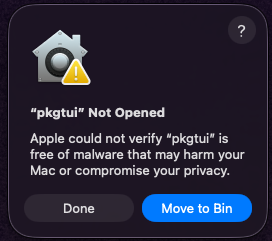
- Open System Settings → Privacy & Security, scroll down to the note that "pkgtui" was blocked to protect your Mac, and click Allow Anyway.
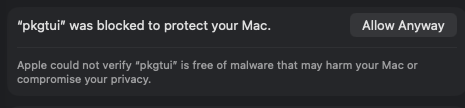
- Open a terminal and run
pkgtuiagain — an Open "pkgtui"? prompt appears, click Open Anyway, then enter your password when asked. pkgtui starts normally from then on.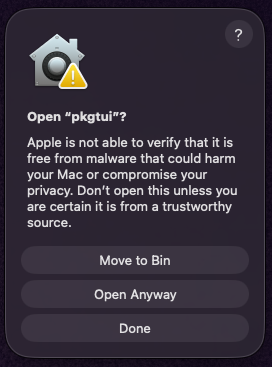
Only needed once, on the very first launch — thanks to @Sk8teb0arder for walking through this and sharing the screenshots.
# without Homebrew: darwin_arm64 on Apple Silicon, darwin_amd64 on Intel
curl -fLO https://github.com/padovanl/pkgtui/releases/latest/download/pkgtui_<version>_darwin_arm64.tar.gz
tar -xzf pkgtui_<version>_darwin_arm64.tar.gz
sudo mv pkgtui /usr/local/bin/
git clone https://github.com/padovanl/pkgtui.git
cd pkgtui
go build -o pkgtui .
sudo mv pkgtui /usr/local/bin/
Full instructions, checksums and arm64 builds on the releases page.
Every key, one dashboard
The complete keybinding reference — also available in-app any time with ?.
| Key | Action |
|---|---|
| ← / → | Switch backend (one tab per package manager found) |
| tab | Switch view (Installed / Upgradable / Orphaned* / Search) |
| / | Search the backend's full catalog, then enter to run it |
| f | Filter the packages currently shown, live as you type |
| ↑/↓, j/k | Navigate the list (mouse wheel and clicks work too) |
| enter | Show details for the selected package |
| space | Tag/untag the selected package for a batch action |
| i | Install the selected package, or all tagged packages |
| d | Remove the selected package, or all tagged packages |
| u | Upgrade the selected package |
| U | Upgrade all packages, with a preview first |
| S | Sort the current view by installed size |
| c | Cycle the install channel (while confirming a snap install) |
| H | Hold/unhold the selected package (apt, flatpak, brew) |
| C | View the selected package's changelog (apt) |
| P | Manage third-party sources: PPAs (apt), remotes (flatpak) |
| s | Sync the cache (apt-get update, flatpak update --appstream, brew update, port selfupdate; no-op on snap) |
| K | Disk cleanup: old kernels, leftover configs, disabled revisions |
| W | Why is the selected package installed (manual vs. dependency, reverse-dep tree) |
| A | Unattended-upgrades status (apt) |
| O | Backend overlap: packages installed more than once, stale snaps |
| V | Install a specific version / downgrade (apt); revert (snap) |
| M | Metrics dashboard: installed packages ranked by disk usage |
| X | Upgrade conflicts: packages a plain upgrade would keep back, or Ubuntu's phased rollout is holding back (apt) |
| L | Action log: what's run this session, and whether it succeeded |
| y / n | Confirm / cancel a pending action |
| esc | Go back |
| , | Open settings (theme, keybindings) |
| ? | Toggle the in-app help screen |
| ctrl+l | Force a full screen redraw |
| q | Quit |